Profiles
A profile says what a key may do: which models, how fast, and how much. Every person has one, either assigned by an admin or the default profile.
The admin panel at /admin provides:
- Profiles — create and edit profiles with model restrictions, TPM/RPM limits, and budget caps. Mark one profile as default; it applies to users with no explicit profile assignment.
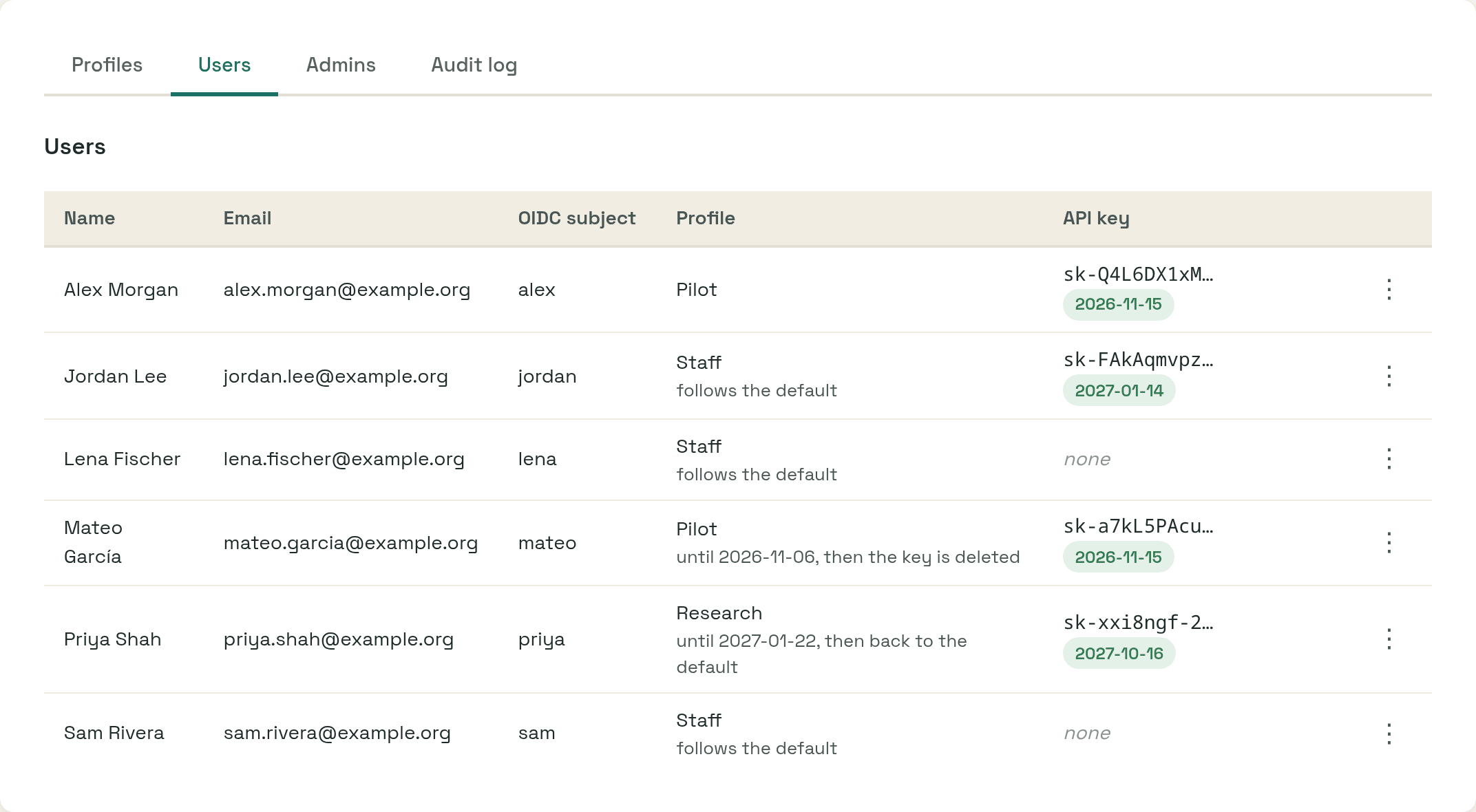
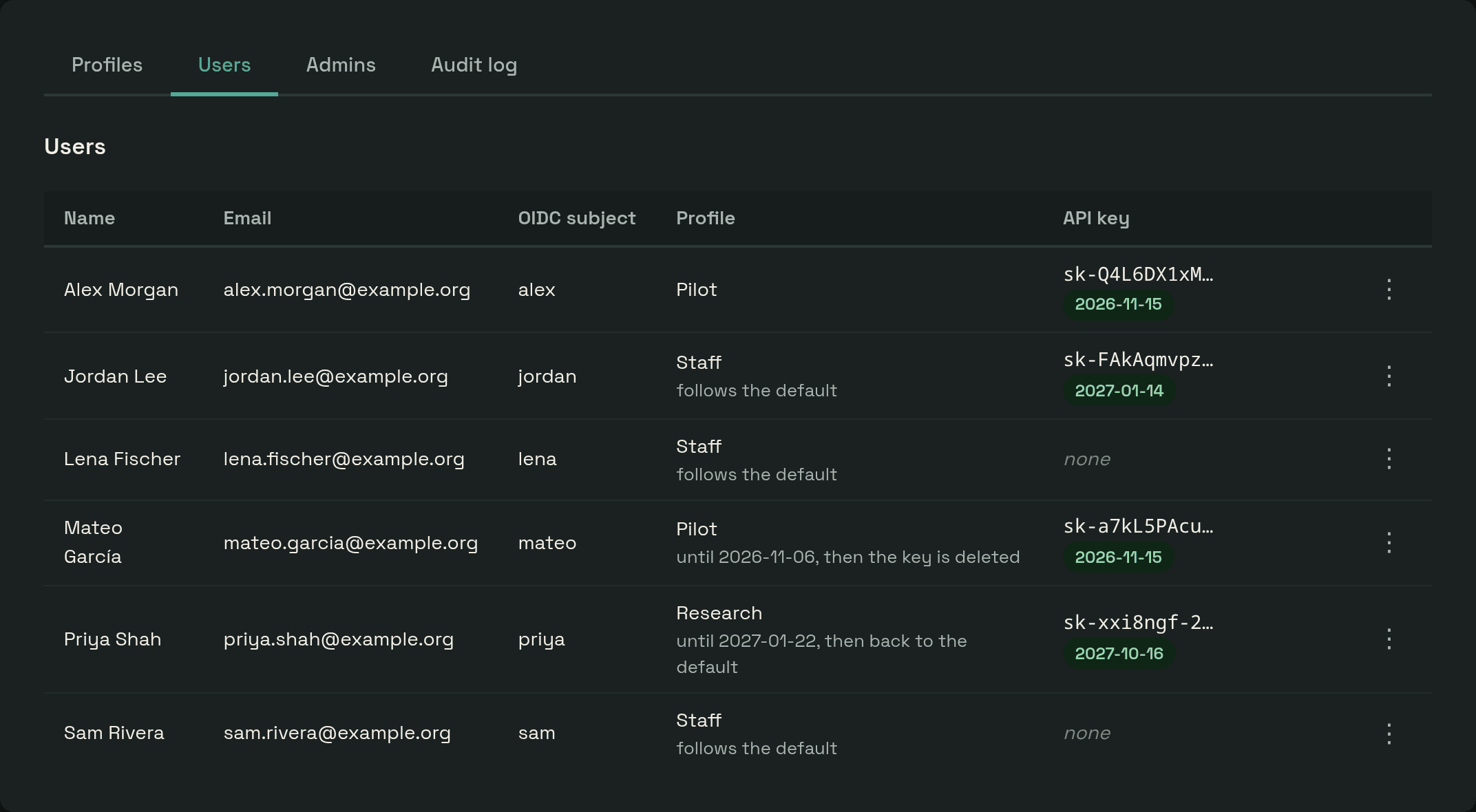
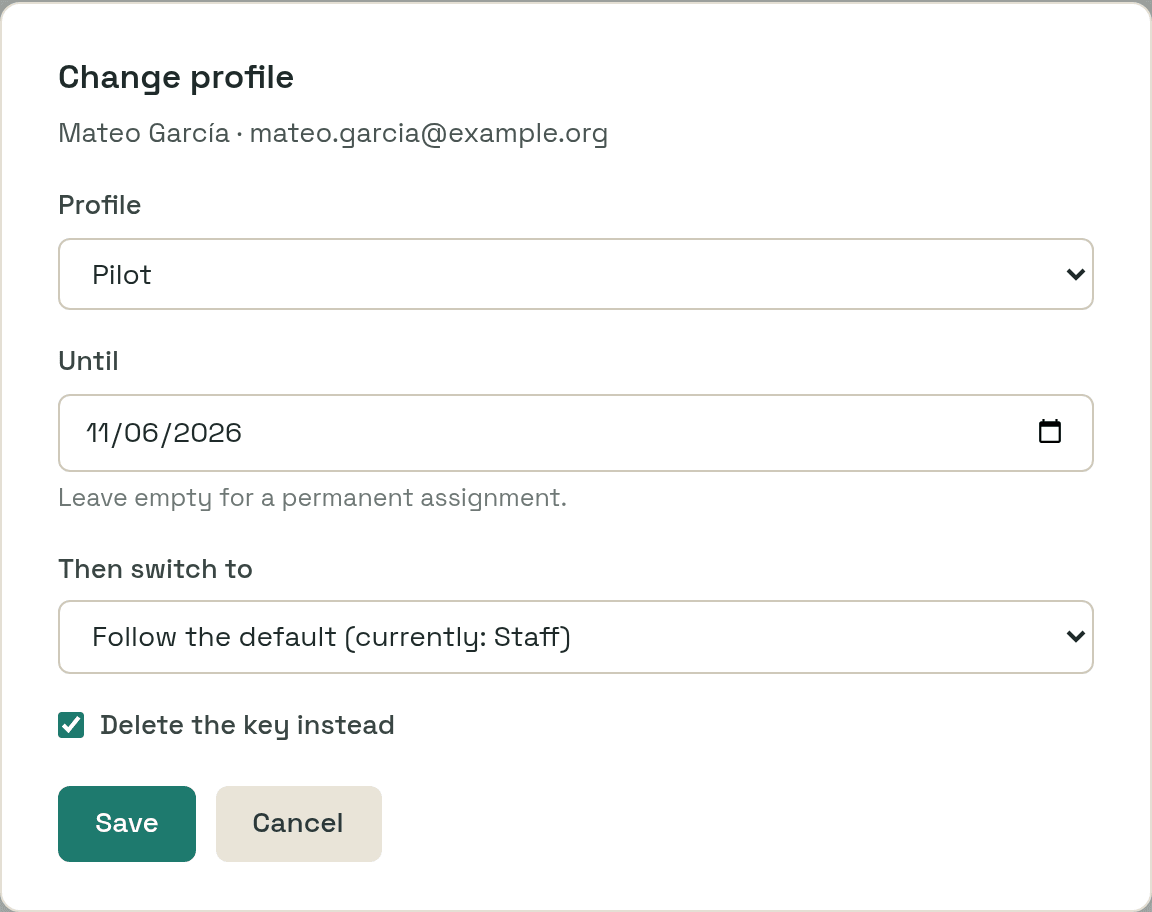
- Users — view everyone who has logged in, see their key prefix and expiry, assign a profile, and revoke a key. An assignment can carry a deadline: set a date and the user reverts to the default profile when it passes, or to a profile you choose, or their key is deleted if you tick that instead. Leave the date empty for a permanent assignment.
- Admins — list the admins, and promote and remove them when the panel manages them; see Administrators.
- Audit log — the 500 most recent key and profile changes, recording who
did what to whom. Rows outlive the key and user they describe, so revoking
does not erase the history. Changes nobody in Keyosk made, such as a profile
deadline passing or a key found missing from the gateway (
key.missing, and laterkey.foundorkey.gone), are recorded withsystemas the actor.
The users and the audit log each have a filter box that narrows the table to the rows containing every word you type, in any order. It searches what the page holds, so on the audit log only those 500 changes. - Limit sync status — a card above the tabs says whether all keys carry their profile's current limits yet. If not, it shows how many are still waiting, whether an update is running, which keys failed and why, and each profile shows how many of its keys are waiting. See How profile changes reach existing keys.
Profile fields:
| Field | Description |
|---|---|
| Models | Comma-separated list of allowed model names (empty = all models) |
| Key validity | How long a generated key lasts, in days (blank = KEY_DURATION_DAYS) |
| Usage limit | Spend allowance per period, in BUDGET_UNIT (blank = unlimited); several windows may apply at once, and all but the widest apply per key |
| Limit resets | hourly, daily, weekly or monthly |
| TPM limit | Maximum tokens per minute — burst control, complements the usage limit |
| RPM limit | Maximum requests per minute |
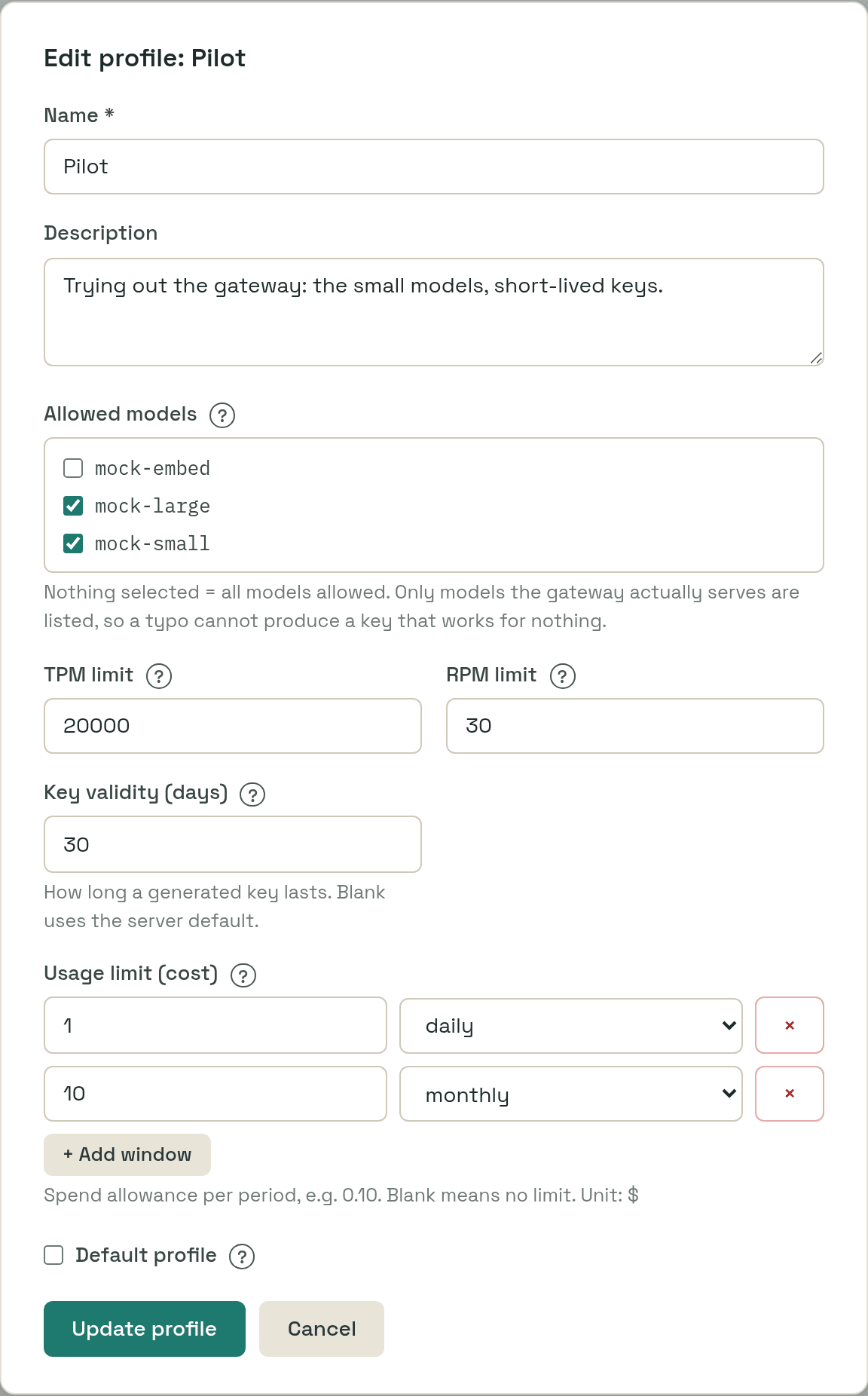
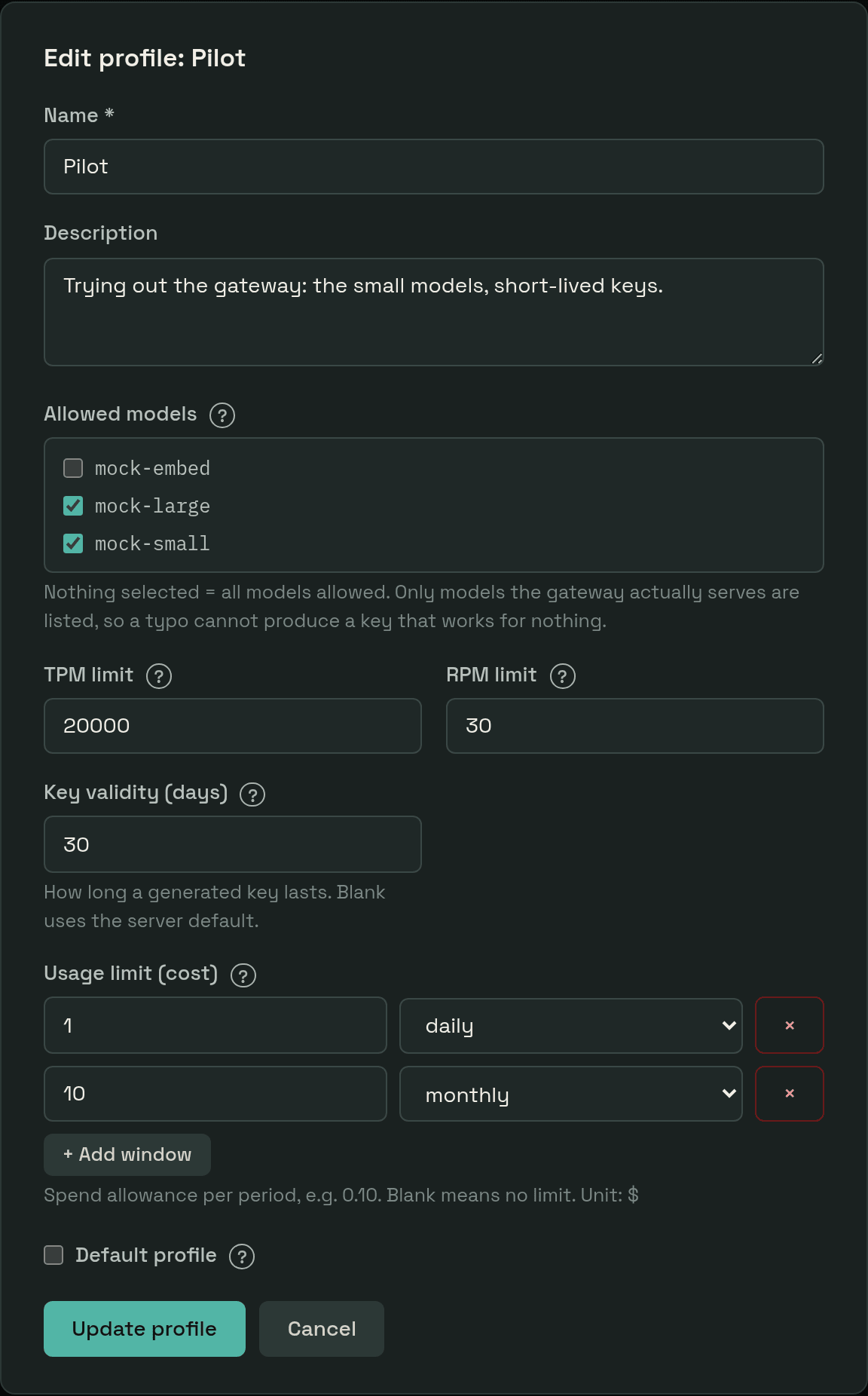
Different groups get different profiles: a pilot group might get 30-day keys with a $1.00 daily allowance, a team that builds on the gateway 365-day keys with no quota. The Users tab shows who has which, and until when:
A row's Edit opens the assignment, with the deadline and what happens when it passes:
How profile changes reach existing keys
Limits are pushed to the gateway when a key is issued. After that, a background limit sync keeps every key in line with its owner's profile. It reacts to everything that can change what a key should enforce:
- an admin edits a profile's models, TPM/RPM limits or quota windows,
- an admin moves a user to another profile,
- another profile becomes the default (this affects every user without a profile of their own),
- a time-limited assignment runs out,
- a person logs in with a new username or email address, which their LiteLLM user is labelled with (see People in LiteLLM).
Renaming a profile, rewording its description or changing its key validity does not touch any key, because none of that changes what the gateway enforces.
How it works. Each profile has a revision number that goes up whenever its
limits change, and each key records the profile and revision it was last
updated with. A key whose owner's profile differs from that record is out of
date. The sync works through the out-of-date keys one at a time (more with
LIMIT_SYNC_WORKERS). An admin change starts it immediately; the admin's page
does not wait for it. One update takes three calls to the gateway, so a change
to a profile with 5,000 users takes about 25 minutes with the default single
worker.
Expired keys are left alone: they enforce nothing, and updating one would still rewrite its owner's allowance in the gateway. A key that is extended later is updated then, if it is out of date.
There is no queue of changes. A key always receives what its owner's profile says at the moment it is updated, so if a profile is saved twice in quick succession, keys not reached yet only ever see the second version, and keys that already got the first are updated again.
Failures. An update that fails, for example because the gateway is down,
is retried every LIMIT_SYNC_INTERVAL. The admin panel lists failed keys with
the gateway's error. A key whose owner has no profile at all, because no
default profile exists, is never updated with empty limits, which the gateway
would read as "unlimited"; it is reported as failed instead.
Keys deleted in the gateway. A key deleted in LiteLLM directly, outside
Keyosk, cannot be restored: Keyosk does not have what it would need to
recreate it. But "the gateway does not have this key" is also what a Keyosk
instance pointed at the wrong LiteLLM, or at one restored from an old backup,
sees for every key. So Keyosk does not forget such a key at once. When the
sync, the dashboard or an extension finds that the gateway no longer has a
key, the key is marked as missing and a key.missing entry goes to the
audit log. From then on:
- The owner's dashboard says the gateway does not recognise the key and offers a new one. Extending is not offered. The owner can still delete the key or generate a new one, which replaces it.
- The admin panel shows the key as missing since its first sighting.
- The sync stops updating its limits and no expiry reminder is sent for it.
- Every sync run asks the gateway about each marked key. One that is back is
unmarked (
key.found) and updated like any out-of-date key, so changes made while it was gone reach it. One that stays missing pastKEY_MISSING_GRACE_PERIODis removed (key.gone); the owner can then generate a new key. If the gateway cannot answer, the key is left as it is and the grace period still counts from the first sighting.
Removal therefore takes the grace period plus up to LIMIT_SYNC_INTERVAL.
Deleting or revoking a key the gateway no longer has succeeds, since the key is
gone either way.
Only LiteLLM's own "not found" answer counts. A 404 from anything in front of it, such as a reverse proxy whose route changed or a maintenance page, is an ordinary failure: the record is kept and the call retried.
If a Keyosk instance is pointed at the wrong LiteLLM, every key is marked
within one sync run and the monitoring dashboard shows it (see
Metrics): correct LITELLM_BASE_URL within the grace period and
the next run unmarks them all. The same run asks the gateway about every marked key, one request
each, so this costs as many requests as there are keys.
Changes made directly in the gateway are invisible to Keyosk. To undo them, mark every key as out of date:
The command needs only DB_PATH, changes nothing in the gateway itself, and
exits at once; the running server then updates every key on its next run,
within LIMIT_SYNC_INTERVAL. It must run where the database is, so against a
container use docker exec <container> keyosk -resync-limits, or
kubectl exec into the pod. Run it from cron to do this nightly.
The dashboard never pushes limits. It only reads, and when it cannot load the user's profile, key or usage, it says so rather than showing defaults.
Clearing a quota sends an explicit null. LiteLLM leaves an omitted field
untouched, so a profile that loses its allowance would otherwise keep enforcing
the previous one.