Overview
The overview is the start page. It refreshes itself every few seconds; running videos do not restart.
Tiles
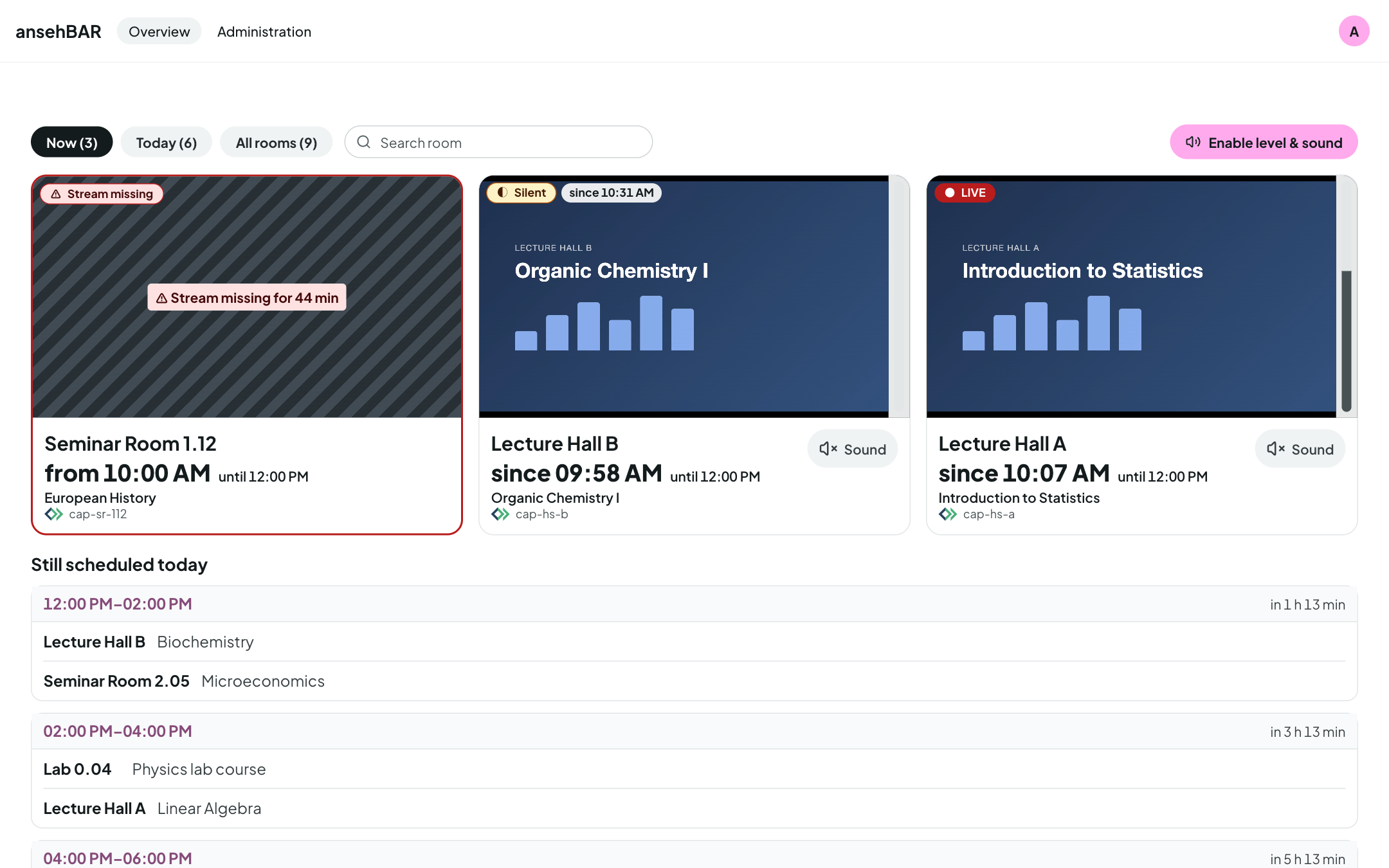
There are tiles only for rooms that are streaming or should be. Problems come first: “Stream missing” first, then “Silent”, then the running rooms.
Each tile shows:
- the video (starts muted) and the level meter next to it,
- the status at the top left — always with text and symbol,
- the room, below it in large type the time (“since 10:07” for a running stream, “from 10:00” for a missing one) and, smaller, the scheduled end,
- the title of the Opencast event and the stream name,
- the Sound button.
Create a ticket
Once a GitLab project is set under Settings, every tile has a button Create ticket for ‹room name› (an icon; it appears right after saving the settings). It opens a dialog:
- If the tile shows video, it contains a screenshot of the current frame. Otherwise it says “No screenshot available – the ticket will be sent without one.”
- The error description is required; Create ticket sends it.
- Afterwards a link leads to the ticket in GitLab.
The ticket contains the description, room, stream and capture agent, time, status, the current Opencast event (title, series, presenters, planned time), your name and a link to the room view. ansehBAR itself stores none of this. If it fails, the dialog reports “The ticket could not be created in GitLab.”; if only the screenshot fails, the ticket is created without an image.
Filters and search
| Filter | shows |
|---|---|
| Now | rooms that are streaming or should be according to Opencast |
| Today | also the rooms with something still scheduled today |
| All rooms | all recorders, quiet ones included |
The number in a filter counts its rooms. Search filters by room name, stream name or Opencast agent.
Level and sound
Browsers play sound only after a click. That is why each page has the button Enable level & sound once. Until then the level meter shows the server level: the monitor measures the sound of every running room itself every few seconds.
After enabling, the browser measures the level directly from the video, and Sound on a tile switches that room's sound on. Only one room plays sound at a time: switching another room on mutes the previous one.
States
| Display | Meaning |
|---|---|
| ● LIVE | The stream is running: its playlist keeps advancing. |
| ◐ Silent | The stream is running, but no sound has been heard for a few minutes. |
| ⚠ Stream missing | According to Opencast a recording is running, but the stream is not there. The tile has a red frame and stripes. |
| No stream | The recorder is not sending right now; nothing is scheduled either. |
| Status unknown | The monitor could not check the stream, for example because the streaming server does not answer. |
In ansehBAR, “live” means more than “the address answers”: a stream counts as live only when its playlist moves on within a short time.
Further notices at the top of the page:
- Monitor has delivered no data since … — the checking process itself has stopped; the states shown may be outdated.
- Opencast data out of date — the sync with Opencast is failing right now; “Stream missing” and the scheduled events are uncertain then.
Still scheduled today
Below the tiles are the recordings that still start today, grouped by slots (e.g. 12:00–14:00) with “in 1 h 13 min”. An event whose start or end differs from the slot is marked. From 5 pm, or when nothing more is scheduled today, Tomorrow follows.
Rooms without a recording today are listed compactly in one line. A click still opens the room.
Last recording had problems
If a room's most recently finished event had problems — the stream was missing, it was silent for long, or Opencast reports a failed recording or processing — the tile shows a ⚠ notice. It disappears after the next clean recording.
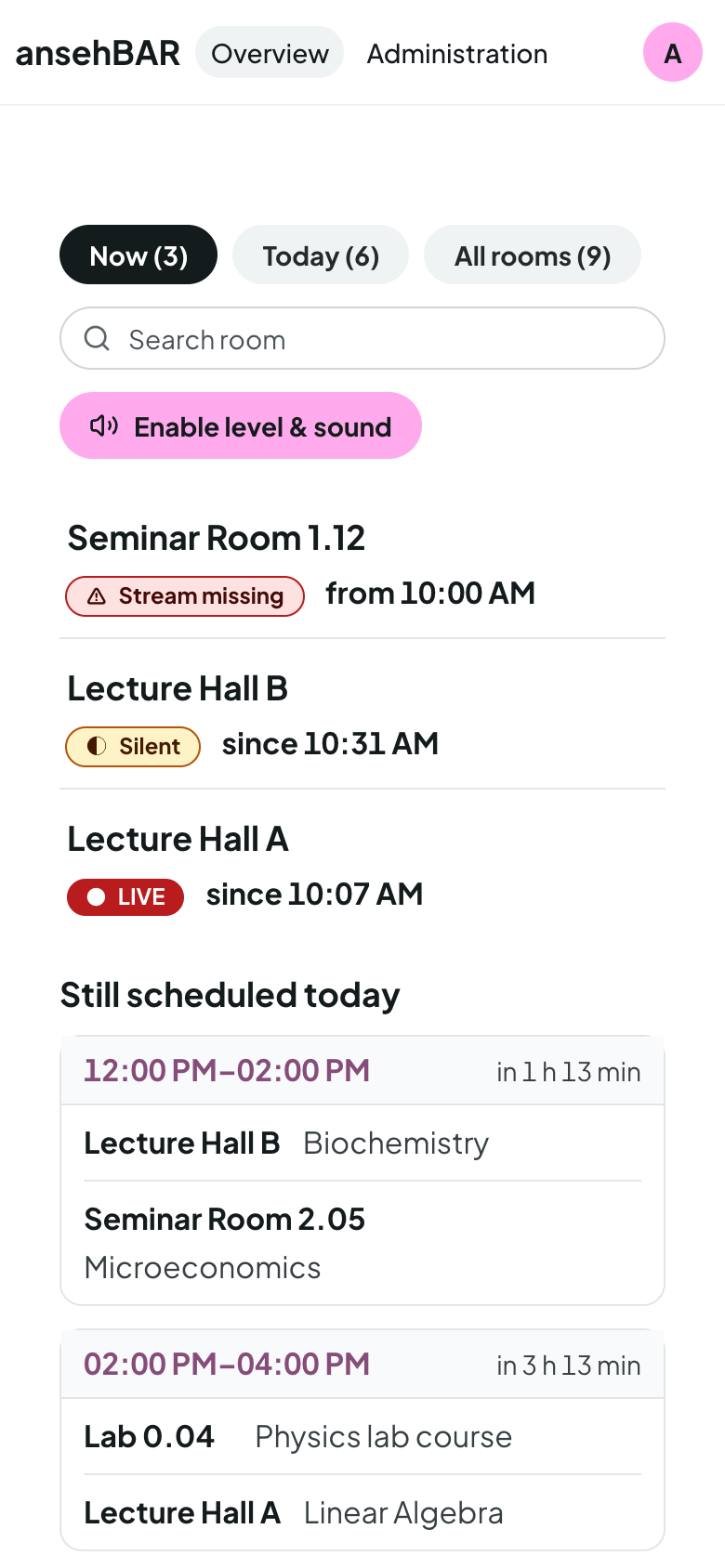
On the phone
On narrow screens the overview becomes a room list with status and time. Tapping a room opens the room view.