Managing recorders
Technically everything hangs on a recorder: its stream is checked, events and incidents belong to it. What you see everywhere is the room name.
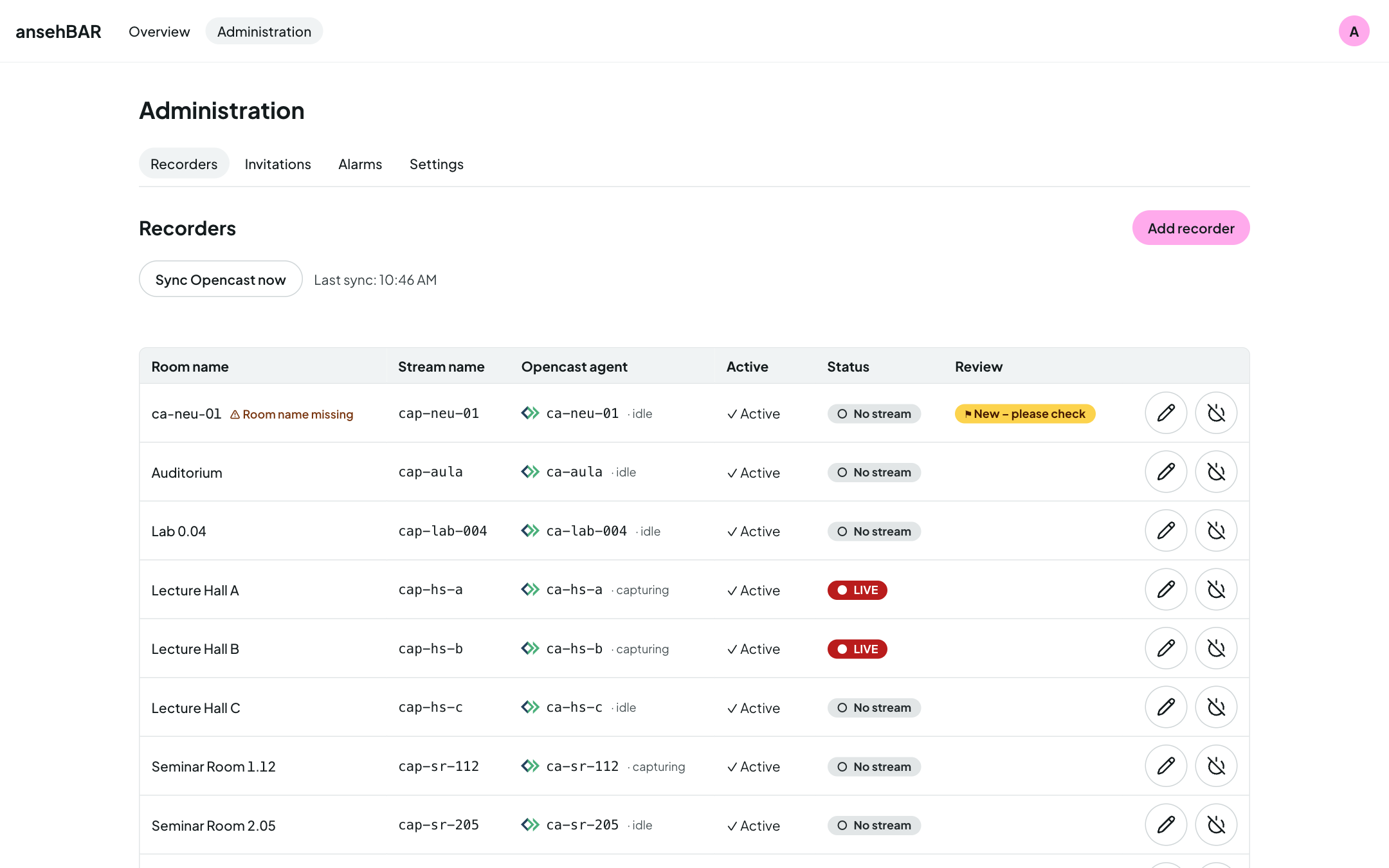
Administration → Recorders lists all recorders with room name, stream name, Opencast agent, status and whether they are active.
Adding and editing recorders
Add recorder opens a form; the pencil on a row edits an existing recorder.
| Field | Meaning |
|---|---|
| Room name | What the room is called everywhere in ansehBAR, e.g. “Lecture Hall A”. |
| Stream name | Name of the stream on the streaming server. Upper and lower case matter. |
| Opencast agent | The capture agent in Opencast; empty if not linked. Usually the same as the stream name. |
| Alarm mode | See below. |
| Active | Only active recorders are checked and shown. |
New from Opencast
With the Opencast connection, ansehBAR creates a recorder for every new capture agent. It has no room name yet and is marked New – please check. Enter a room name and save — or deactivate the recorder if it is not needed.
Sync Opencast now fetches agents and events immediately instead of waiting for the next regular sync. ansehBAR only reads.
Alarm mode
| Mode | Alarm “Stream missing” |
|---|---|
| On time (Opencast start) | when the stream is missing at the Opencast start plus the grace period (3 min by default) |
| Grid (c.t.) | at the earliest at slot start plus c.t. plus tolerance — for rooms that book differently or start later |
| Off (log only) | no alarm; incidents still appear in the timeline and calendar |
The matching times are under Settings.
Deactivating and deleting
- Deactivate takes a recorder out of checking and the overview; its history stays.
- Only deactivated recorders can be deleted. Its events and incidents disappear with the recorder.
- If the recorder came from Opencast, its agent goes onto the list Ignored Opencast agents so the sync does not create it again. “Allow again” undoes that.