Room view
Clicking a tile or a room opens the room view. It has its own address
(/raum/<number>) that you can bookmark or share.
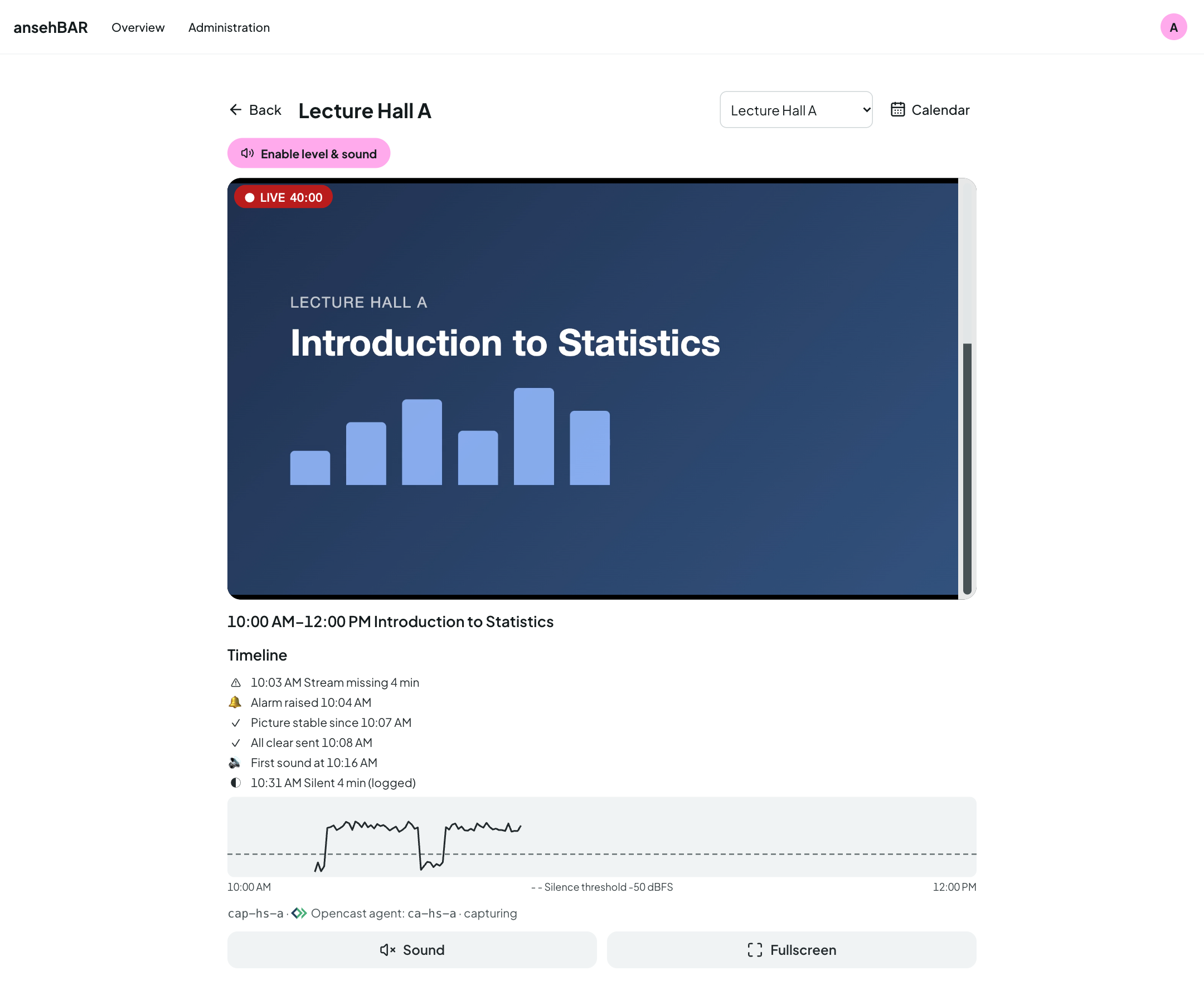
Header
- Back returns to the overview.
- Switch room jumps straight to another room.
- Calendar opens this room's room calendar.
Player
A large player with level meter, the status with running time at the top left (“● LIVE 40:00”). Below it:
- Sound switches this room's sound on or off (first Enable level & sound once, see Overview).
- Fullscreen shows the video full screen.
If the room is not sending, a clear notice replaces the player, for example “No stream – no recording scheduled” or “Stream missing for 12 min”. When the stream comes, the player starts by itself.
Event and timeline
Below the player are the time window and title of the running Opencast event, followed by the timeline of this event:
| Entry | Meaning |
|---|---|
| ⚠ 10:03 Stream missing 4 min | The stream was missing during the event. |
| ⚠ Stream missing since 10:03 | The stream is missing right now. |
| 🔔 Alarm raised 10:04 | An alarm went out for this incident. |
| ✓ All clear sent 10:08 | The stream came back stably; the all-clear went out. |
| ✓ Picture stable since 10:07 | The stream has been running without interruption since then. |
| 🔊 First sound at 10:16 | Sound was heard for the first time here. |
| ◐ 10:31 Silent 4 min (logged) | A shorter silence, such as a break; only logged. |
| ◐ Silent since 10:31 | It is silent right now. |
The timeline refreshes every 30 seconds.
Level curve
The curve shows the level measured by the server over the event. The dashed line is the silence threshold: everything below it counts as silent. Gaps in the curve are times without a measurement, for example because the stream was missing.
The curve also helps to set the threshold: if talk and break are clearly apart, the threshold belongs in between (see Settings).
Last recording
If the room's last recording had problems, a yellow box below lists title, time and the problems. At the end: the stream name and the linked Opencast agent with its state (e.g. “capturing”).
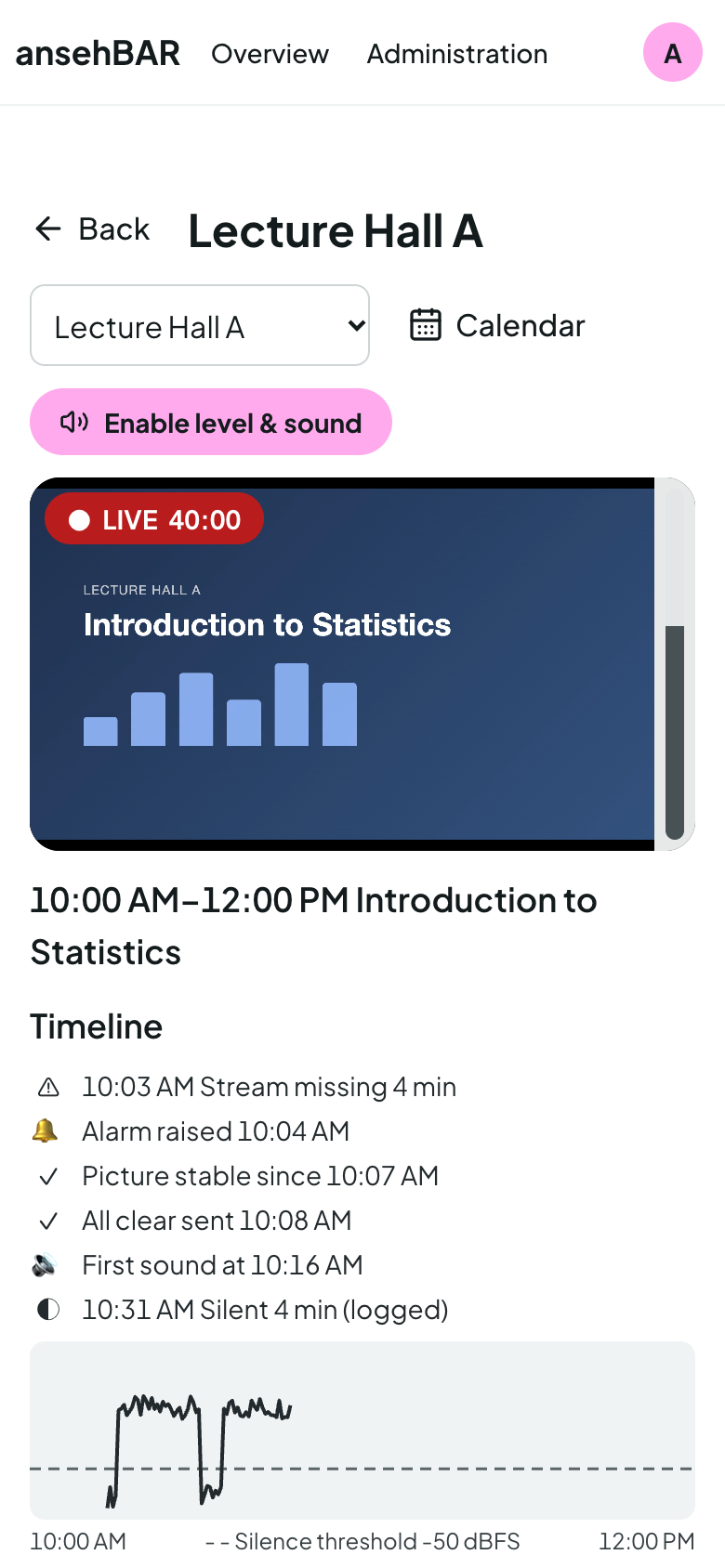
On the phone
The room view is built for phones: a large player, large buttons for sound and full screen, the timeline below.