Presenting
In presentation mode, you control the session via the toolbar at the bottom or with the keyboard. The bar only shows what fits the current moment; hover over an icon and a tooltip tells you its name and its key.
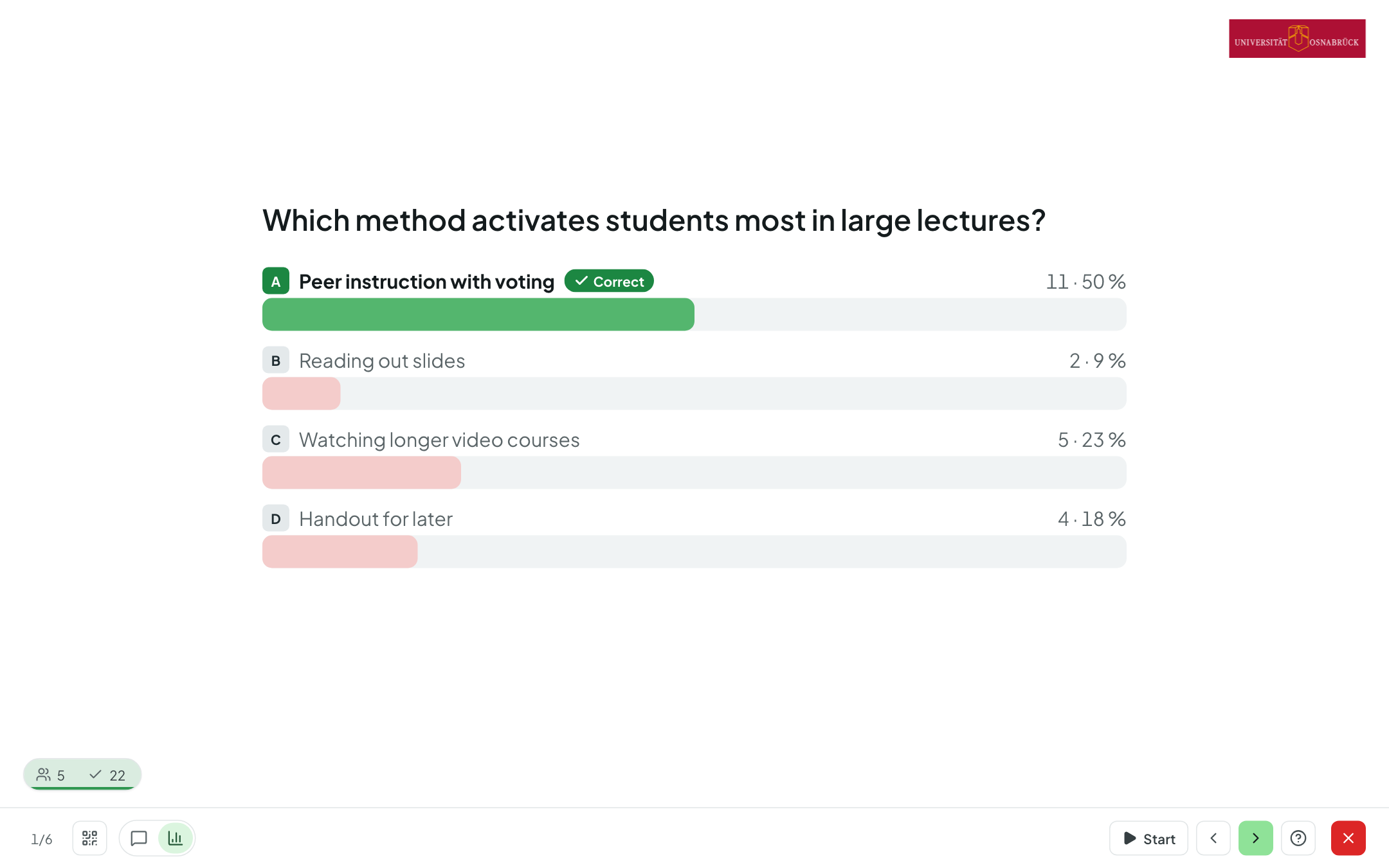
The footer bar
- On the left is the position (e.g. “3/12”). Clicking it opens a list of all questions from which you can jump straight to another question.
- Next to it, the QR icon (Q) brings back the QR code and room code at any time.
- Start (S, also Enter or the space bar — handy with a presentation clicker) opens voting on the current question, Stop (S) closes it. Until you start, participants only see the question.
- ‹ › or Left Right go to the previous or next question.
- On the far right, ? (H) opens the help, and the red ✕ (Esc) leaves the presentation.
At the bottom left, a small indicator shows the connected participants and the participants who have already answered. For questions where each person can contribute several times — a word cloud with several terms, a mind map, a four-field matrix and their ratings — a third number is added: the terms or cards created, or the points or ratings given, out of the total possible (connected participants × the maximum per person). The indicator fills from the left with colour and a thin bar along its bottom edge — by this share when several contributions are possible, otherwise by the share of participants who have answered: red below 50 %, yellow up to 80 %, light green up to 95 %, dark green above that; once it is full, it briefly lights up.
Views: question, results, solution
With the view switcher next to the QR icon, you decide what the projector shows: the Question, the Results and — if the question has a correct answer and the solution is set to appear “after closing” — the Solution. Word clouds, free text and mind maps bring their own views here (e.g. Original, Cleaned up and Grouped, Evaluation or Ranking). Results update in real time; the bars build up with a short animation, and each answer has its own colour. In the solution view, the correct answer is marked green with “Correct”, the others turn a soft pink.
- E jumps to the results (closing any vote in progress); pressing E again returns to the question.
- L shows the solution, pressing L again hides it.
- A cycles through the views. A is purely a “viewing” key: it never closes a vote in progress.
For before-after questions, the two results are shown side by side. If sections structure your set, an interstitial slide with the section's title and description appears before each section; S or Right brings up the first question.
Keys at a glance
| Key | Action |
|---|---|
| S, Enter, space bar | Start / stop voting |
| Left Right | Previous / next question |
| E | Results (closes a vote in progress) / back to the question |
| L | Show / hide the solution |
| A | Cycle through views |
| Q | QR code and room code |
| H or ? | Help |
| Esc | Leave the presentation |
| Ctrl+Z / Cmd+Z | Undo the last moderation step (mind map) |
Help
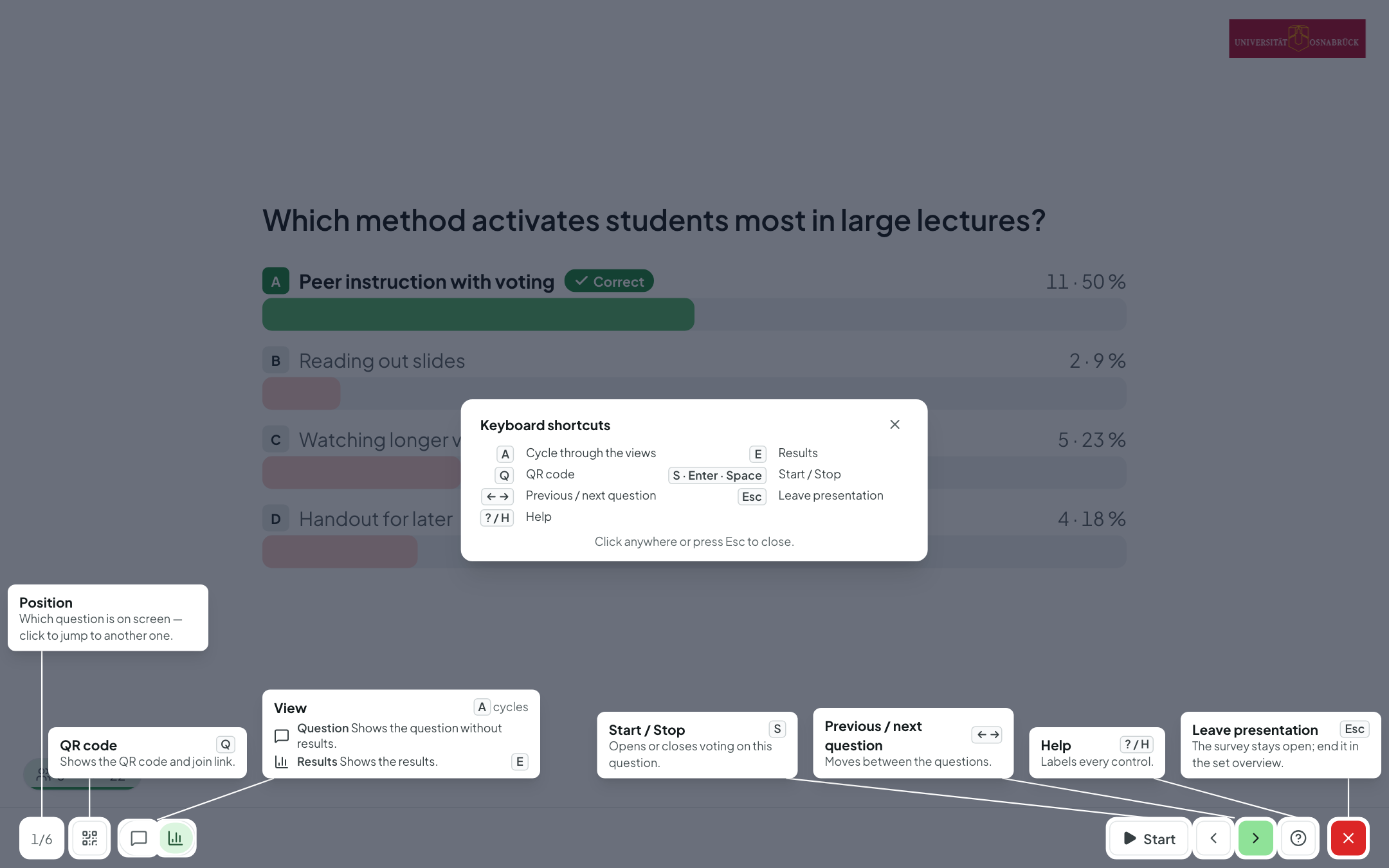
On the far right, ? (or H) opens the Help: the screen is dimmed, and every currently visible button and every tab on the right-hand edge is labelled with what it does and which key goes with it; all keys are listed at a glance at the bottom centre. A click, Esc, ? or H closes the help again.
Leave or end
- The red ✕ (Esc) leaves the presentation without ending the survey: any vote in progress is closed, you return to the question set's overview, and participants see “The presentation is paused – more questions may follow.” (with a button to view their answers).
- Resume: if you present again within two hours, you pick up where you left off — for a matrix or mind map, you go straight to the board or mind map; as soon as you start a new vote, participants' devices jump to the question automatically.
- If you press Right past the last question, the closing screen appears; any key then ends the survey, and Left takes you back to the last question.
- End survey: while a run is in progress, the question set's overview shows the End survey button. Participants then see the closing screen; the results are kept.
Word cloud
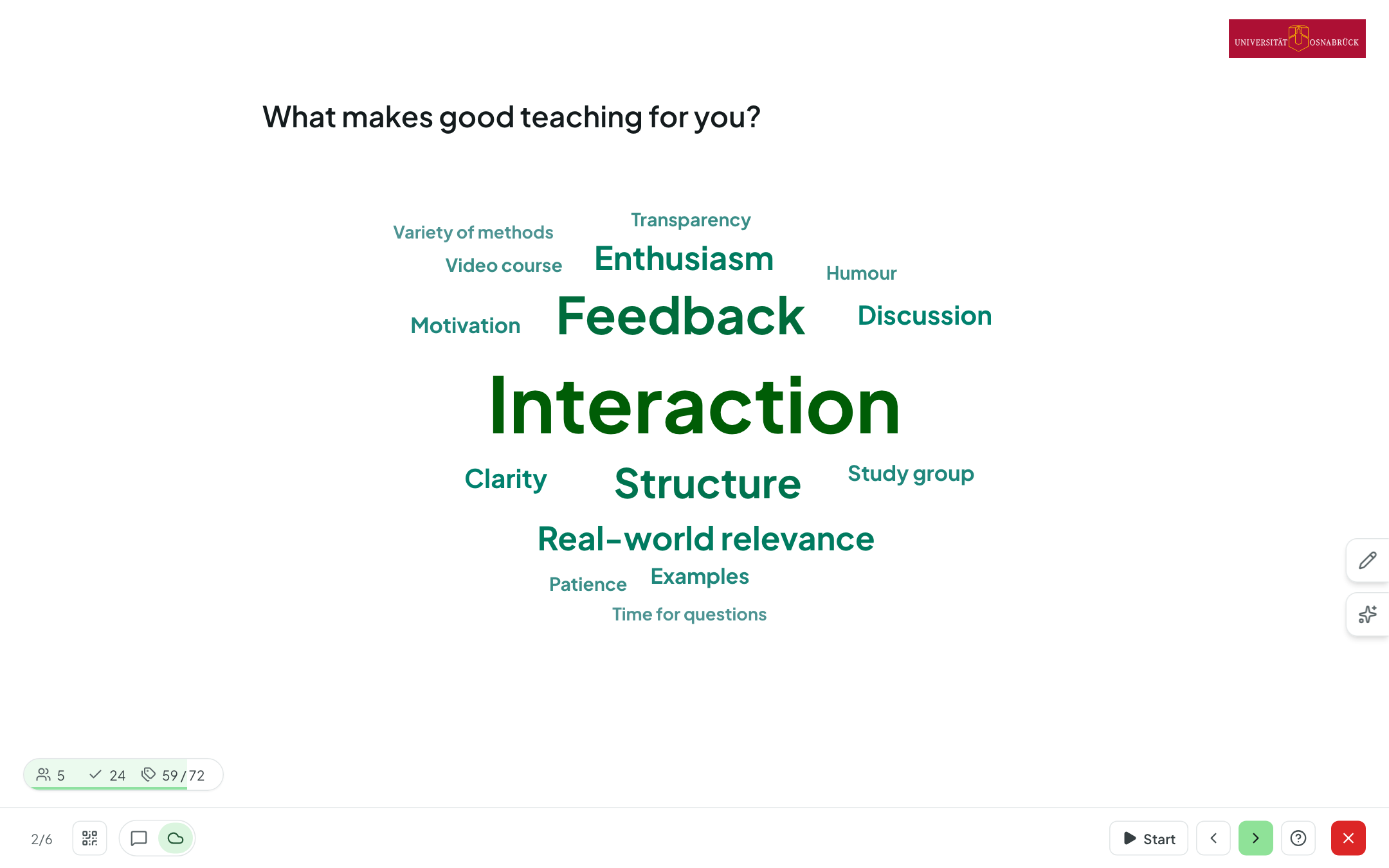
The cloud grows live as answers come in (if enabled in the editor) — frequent terms appear larger. Abstimmbar merges identical terms on its own, regardless of upper or lower case.
Merging and hiding terms (expert mode)
Participants often mean the same thing with different words (“feedback”, “response”). You can merge such terms right on the projector:
- Merge: drag one term onto another. Both then appear as a single term with the sum of their mentions.
- Hide: hover over a term and click × — for example for inappropriate entries.
- Moderation list: the pencil on the right-hand edge opens the list of your interventions. Under Hidden, you bring terms back with Show again. Under Merged you'll find your merges: you can rename them (this is how they appear on the projector) or undo the merge, so the terms appear separately again.
All interventions are reversible and don't change any votes. They apply to this run everywhere: on the projector, on participants' devices, on the results page and in the CSV export.
Cleaning up and grouping with AI (expert mode)
If AI is set up at your institution and you have switched on “Clean up word cloud with AI (presentation)” for the question in the editor, two more views are added to the view switcher:
- Cleaned up — the AI merges similar terms. What it may merge is set under the star on the right-hand edge: Spelling variants and typos (müde / muede / mühde), Synonyms and word forms (einsam / Einsamkeit) and, if you wish, Similar concepts (Gebäude / Haus / Wohnung). Merge again applies changed settings.
- Grouped (AI) — the AI assigns the terms to topics. You can adjust the Grouping instruction (e.g. “by teaching format”) on the fly in the star panel; Regroup applies it.
Original shows the cloud without AI again at any time. The AI views don't change any votes; the settings are saved with the question. On the results page, too, you can Optimize with AI a word cloud afterwards and switch between the original and the optimized version.
Free text
In expert mode, free-text answers can be handled in the same way. In the view switcher, you choose Answers (the answers themselves), Evaluation (bars of the AI evaluation, if switched on), Key statements (the AI combines identical statements with a count) and Grouped (key statements organized by your instruction, e.g. “correct / incorrect”; optionally taking the model solution into account, which stays collapsed in the panel). The projector shows verbatim answers only in “Answers”; if the answers have been evaluated, “Evaluation” comes first in the switcher.
Mind map
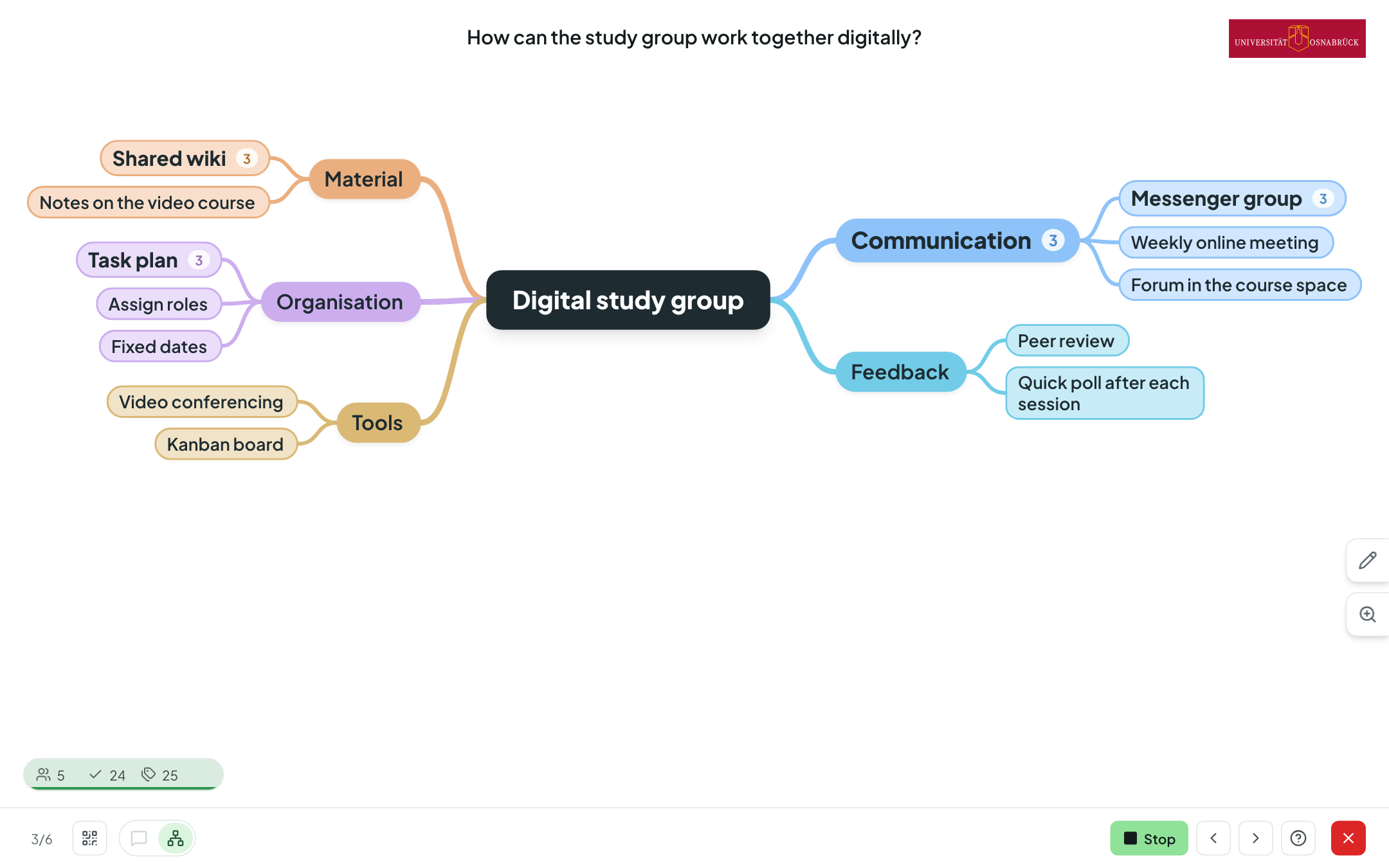
The mind map grows live as answers come in. Use the mouse wheel and drag to zoom and pan; the zoom tab on the right-hand edge switches between compact and detailed (with descriptions).
Moderating (expert mode)
You moderate the mind map right on the projector:
- With + on a term, you add a sub-term when someone calls one out.
- Drag a term onto another and the two are merged (sub-terms come along); drag it onto the “Attach here” tab beside it and it moves there together with its subtree. As soon as you drag, every term shows its tab: dropping on the term merges, dropping on the “Attach here” tab beside it attaches as a sub-term.
- Double-click to rename a term; × hides it along with its subtree.
- Ctrl+Z / Cmd+Z undoes the last step.
The pencil on the right-hand edge opens the moderation view: under Hidden you bring hidden terms back, and below that Merged, Moved, Renamed and AI changes list your interventions so far (newest first). Reset lets you selectively undo a single one of them, even an older one, without touching the later ones. If it no longer fits because the mind map has changed since, it says “No longer possible” with the reason, and nothing changes. Resetting is locked during the rating.
Optimizing with AI (expert mode)
If AI is set up at your university and you have switched on Enable AI features for the mind map in the editor, a star appears below the pencil. There you decide what the AI may do — merge duplicates and synonyms, unify the language (target language German or English) and restructure (move terms under more fitting branches, create new parent terms) — and click Optimise mind map (from three terms onwards, not during the rating). Only the question, the terms and their descriptions are sent to the AI model.
The projector then shows a preview of the optimized tree: changed terms have a purple outline, and an icon with a tooltip tells you what happened (merged, renamed, moved, new parent term). On the right, all suggestions are listed with checkboxes; if you untick one, the suggestions that build on it are dropped too, and the preview adjusts. Apply applies the selected changes in one go — everyone sees the new tree immediately — and Discard leaves everything as it was. Ctrl+Z / Cmd+Z undoes the whole change at once. The AI keeps terms that you created or predefined; nothing is deleted or hidden.
Rating
If you have set up a Rating phase in the editor, first stop collecting and then click Start rating at the bottom. Your participants now rate the terms on their devices — either with Points (a budget per person, optionally several points per term) or with 👍/👎 (up to a set number of ratings). No new terms are added in this phase; the counter at the bottom left shows how many have already rated.
Stop (S) ends the rating; the results stay hidden until you reveal them with Results (E) — unless you have switched on “Show ratings during the rating” (then stopping leads straight to the results). This also applies if you then go Back to collecting: as long as there are hidden ratings, stopping and the timer running out only close voting, the mind map stays on screen, and A shows no ratings either — only Results (E) reveals them.
As soon as the results are visible, the mind map shows the points or plus/minus on each term: each term fills up like a bar — for points in proportion to the top-rated term, for plus/minus green from the left (approval) and pink from the right (disapproval) — well-rated terms grow larger, and the Ranking view lists the top terms as bars in the colour of their branch.
During the rating, you can only hide and show terms; with Back to collecting, participants can add terms again (the ratings are kept). If you present an unfinished survey again later (a new session), the mind map starts again with collecting. On the results page, the ratings appear on the term tree, as a ranking and in the CSV export.
Four-field matrix
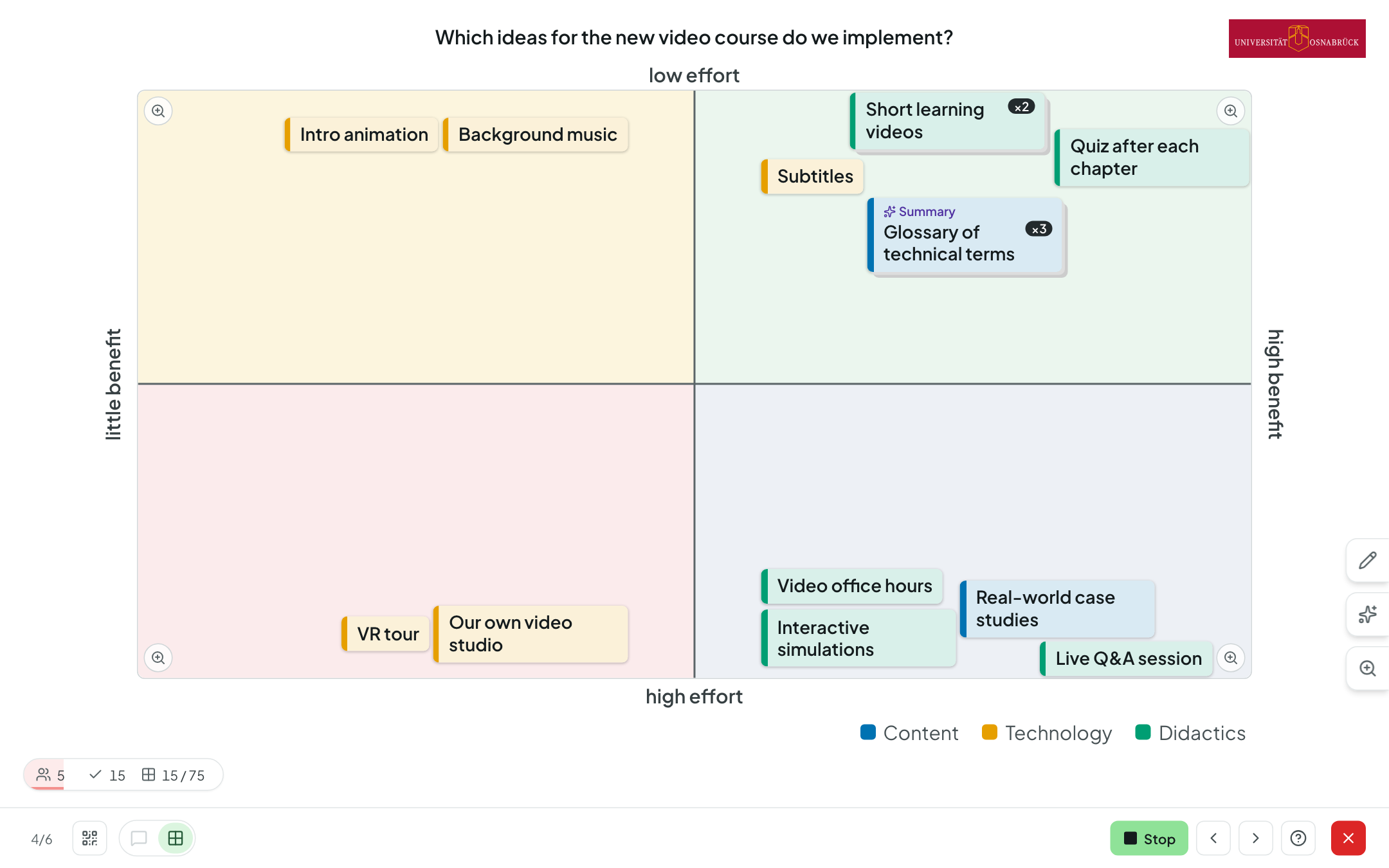
Cards appear live on the axes; the projector shows the board while voting is open, after stopping and in the results view – only the Question view shows the question alone. The footer bar switches between Question and Matrix (A changes the view, E goes to the matrix); stopping (S) or E leaves the board on screen. You moderate right on the projector:
- Drag: cards can be dragged with the mouse or a finger. A card only changes field once you drag it clearly across a boundary (otherwise it slides back into its field); the target field lights up while you drag.
- Stack: drop one card onto another and the two form a stack (“×2”, “×3” …) — handy for identical or similar contributions.
- Open: clicking a card opens it with its description and, for a stack, all the cards it contains; there you can Unstack cards, Hide or Show a card, and delete your own cards. Hiding cards is reversible.
- Your own cards: the pencil on the right-hand edge adds a teacher's card (e.g. as an anchor or example) — you pick the field just like participants do, on the small set of axes — and can Show hidden cards.
- Display: cards have a tab on the left in the colour of their category (with a letter for colour categories). With many cards, they all automatically get a little smaller and spread out so they don't overlap. The tab with the display icon switches between Compact and Detailed (with descriptions). Clicking a category in the legend hides or shows its cards.
- Zoom: as with the mind map, you can zoom the whole board (mouse wheel, + / −, tab) and pan it by dragging on an empty area or with Shift + arrow keys; 0 fits it back in. The magnifier in the corner of a field shows that field full-screen; with , and . (alternatively [ and ], or the arrows in the bar at the top) you move to the previous or next field, and Esc or Overview takes you back.
- Keyboard: Tab takes you to the cards, Enter opens a card, and the arrow keys move it (Shift for bigger steps). A mouse click ends keyboard control again. ? labels all the controls.
Rating
If you have set up a rating phase in the editor, first stop collecting (S); then Start rating appears at the bottom. Participants now rate a list of the cards on their smartphones, grouped by field — for a stack, only the top card, with no hint of the ones underneath — either with Points (a budget per person) or with 👍/👎. The counter at the bottom left shows how many have already rated.
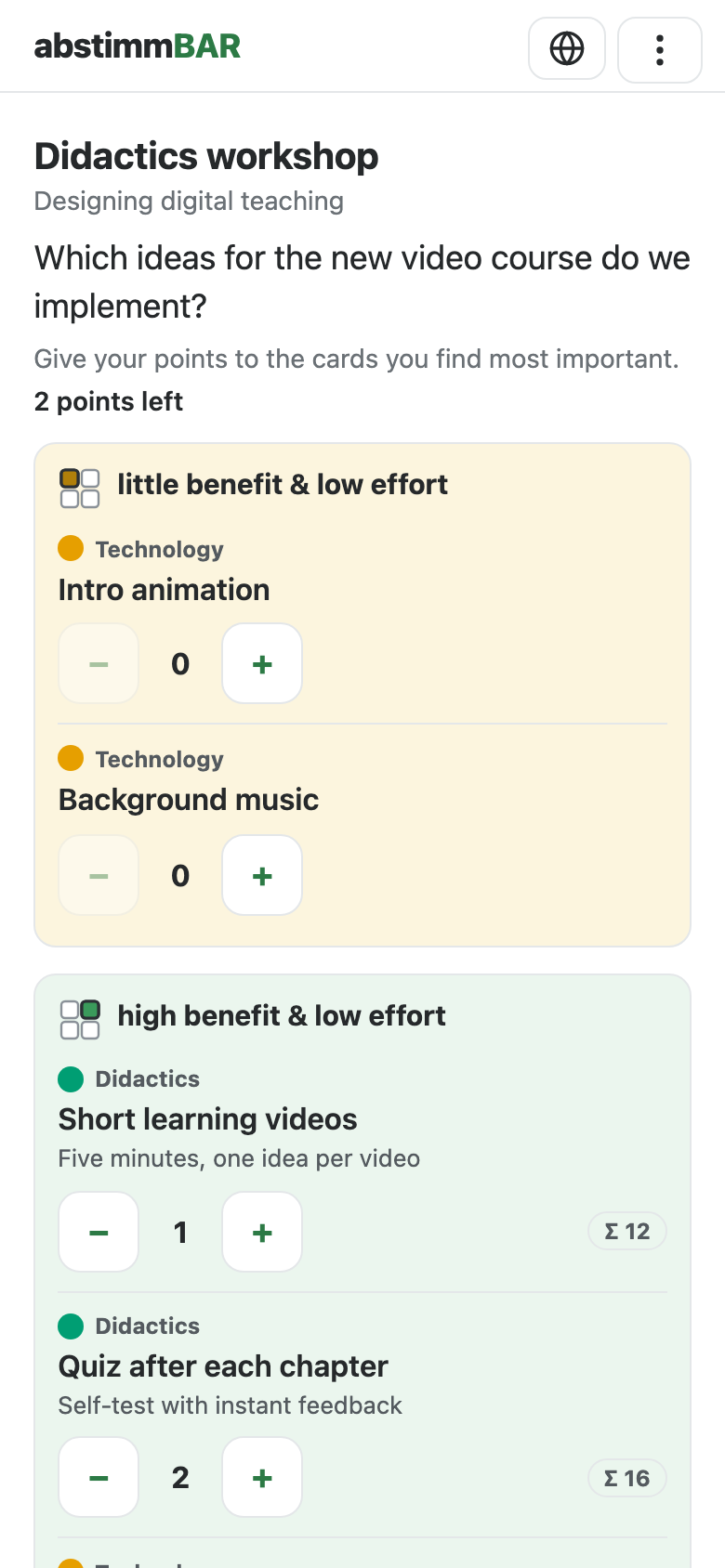
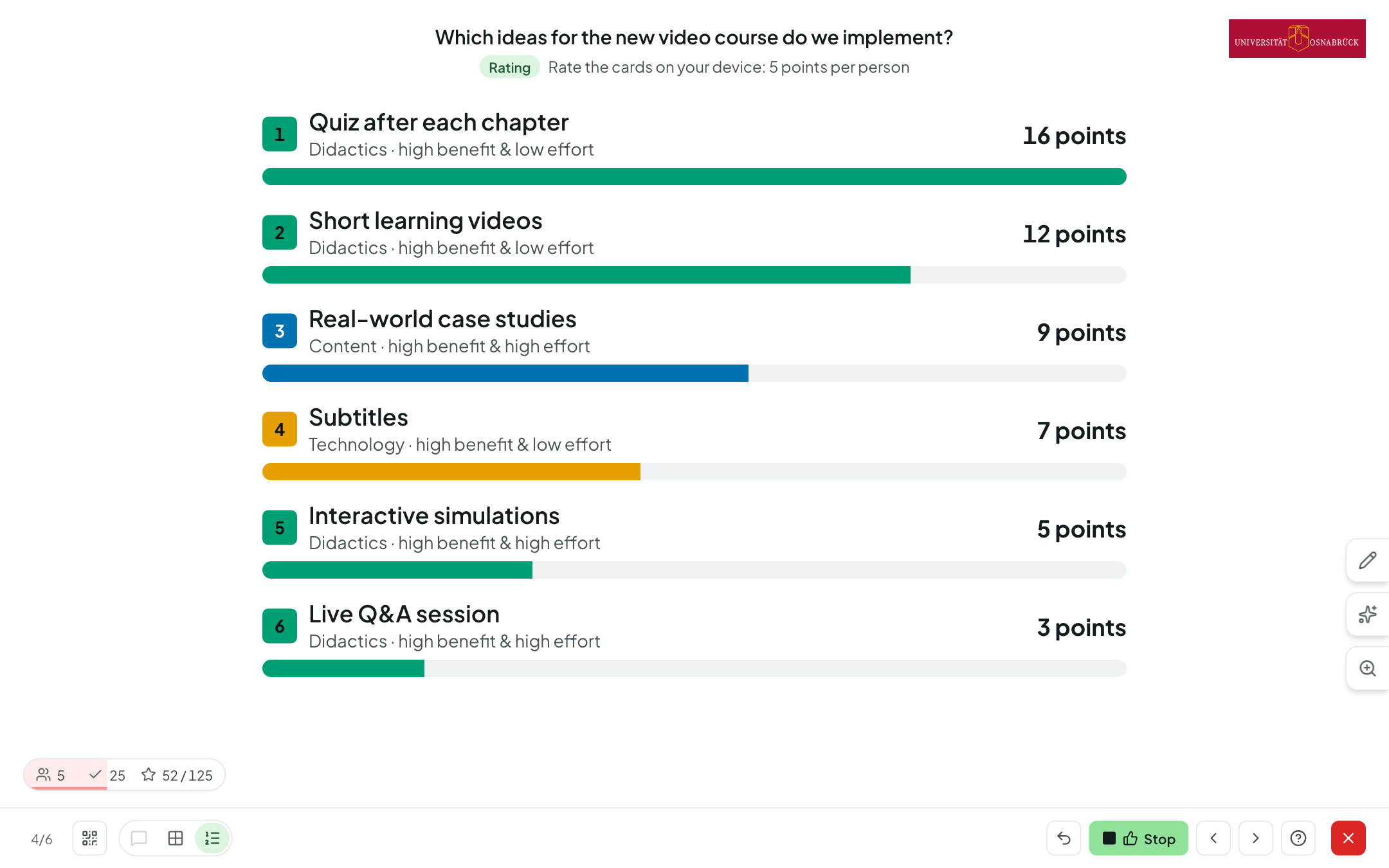
The results stay hidden until you reveal them with Results (E) (unless interim results are switched on). After that, each card fills up like a bar (points in proportion to the top-rated card, for plus/minus green from the left and pink from the right) with the number beside it, and the Ranking view lists the best-rated cards. Cards don't get bigger as a result.
During the rating, stacks are locked (dragging only moves the card; participants can't add or withdraw cards); moving and hiding are still possible. Back to collecting opens the board again; the ratings are kept and stay hidden: stopping (S) and the timer running out then only close voting, the board stays on screen, A shows no ratings — only Results (E) reveals them.
If you return to the presentation in the same session, the matrix is still in the rating; if you present an unfinished survey again later (a new session), it starts again with collecting.
AI grouping (expert mode)
If AI is set up at your university and you have switched on Enable AI features for the matrix in the editor, a star appears below the pencil. There you first choose how strictly the AI should work:
- Spelling only — typos, upper/lower case, singular/plural,
- Same content — the same content in different words,
- Conceptually similar — a common theme.
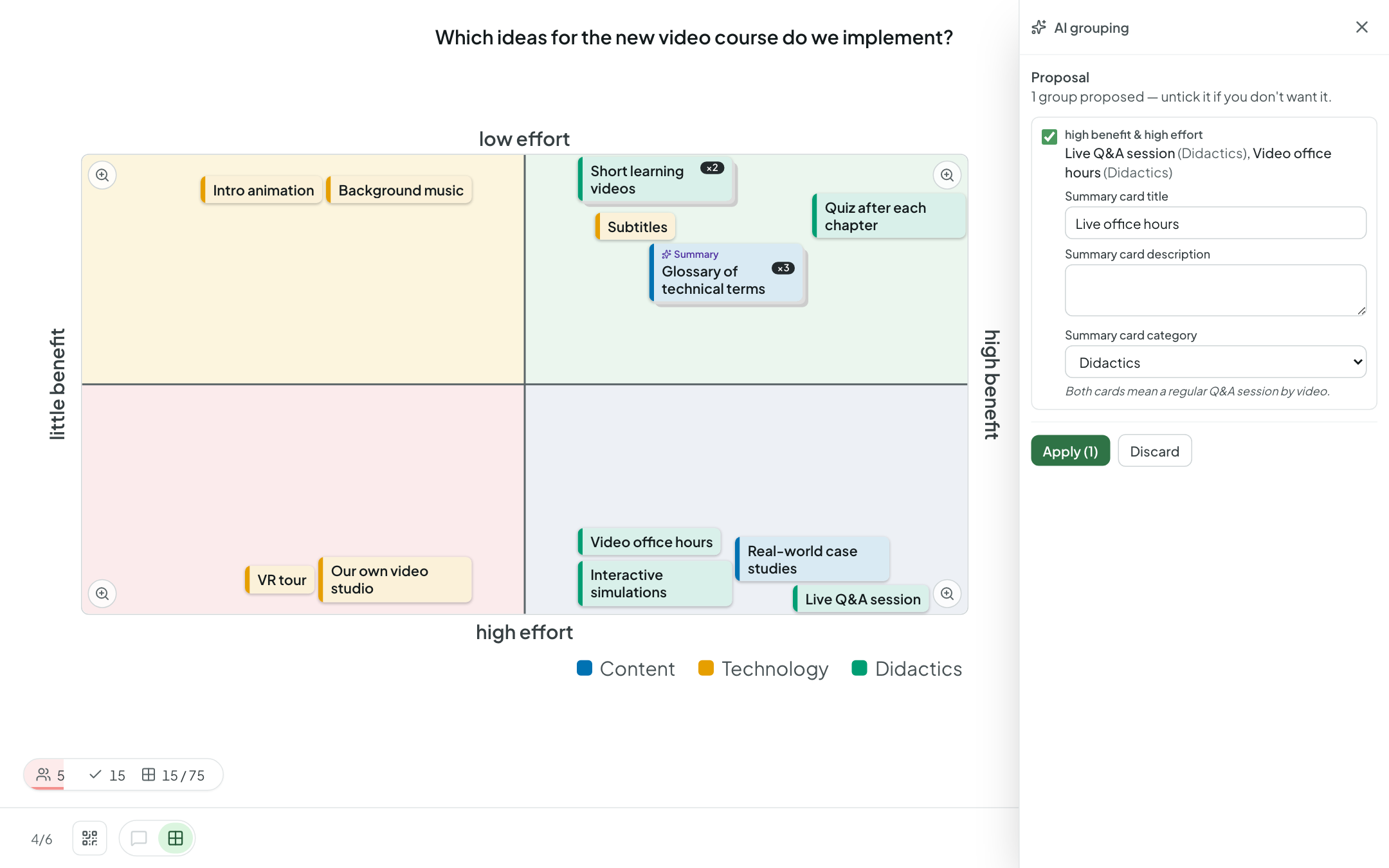
Get proposal (from three cards onwards) shows the suggested groups — always only cards from the same field. Each group gets a summary card: the AI suggests its title (and, if switched on, description and category), and you can change them before applying. The summary card sits on top of the stack, in the place of the oldest card; the other cards lie underneath. If a group already has a summary card, it stays (no second one). Groups that no longer fit the board (a card hidden, in different fields …) are greyed out and give the reason.
Matching cards in different fields are pointed out by the AI as a hint — depending on the chosen level under Same spelling, but placed differently, Same content, but placed differently or Similar, but placed differently. Highlight marks these cards on the board without changing anything — a good starting point for discussion.
Across field boundaries: if you switch on Also group across fields before Get proposal, groups may contain cards from several fields: the summary card goes into the field with the most cards of the group (in a tie, into the field of the oldest card), cards from other fields are marked will be moved from: … and are moved there together with their stack when you apply; hints are then omitted. The switch is off by default.
Apply stacks all ticked groups in one step; Undo in the panel reverts exactly this step (moved cards return to their field and their position) — until the next apply or until you close the panel (opening the pencil or display tab also closes it), and only as long as the stacks haven't been changed by hand.
Summary cards carry a star and “Summary” on the projector, on the results page and in participants' rating list; they can be rated like any other card, and the number on the stack (“×3”) only counts the cards underneath. If you fully dissolve a stack by hand, its summary card disappears.
Only content is sent to the AI model — the question, axes, field names and the cards (title, description, category) — no names or other data about the participants. During the rating the star is locked, because the stacks are fixed in this phase; an open panel closes.
Logo
Whether your institution's logo appears in presentation mode is set in the room settings.