Rooms
A room is the permanent access point for your participants — typically one course. Its room code stays the same across all votes and even across semesters, so your participants only need to learn how to get in once.
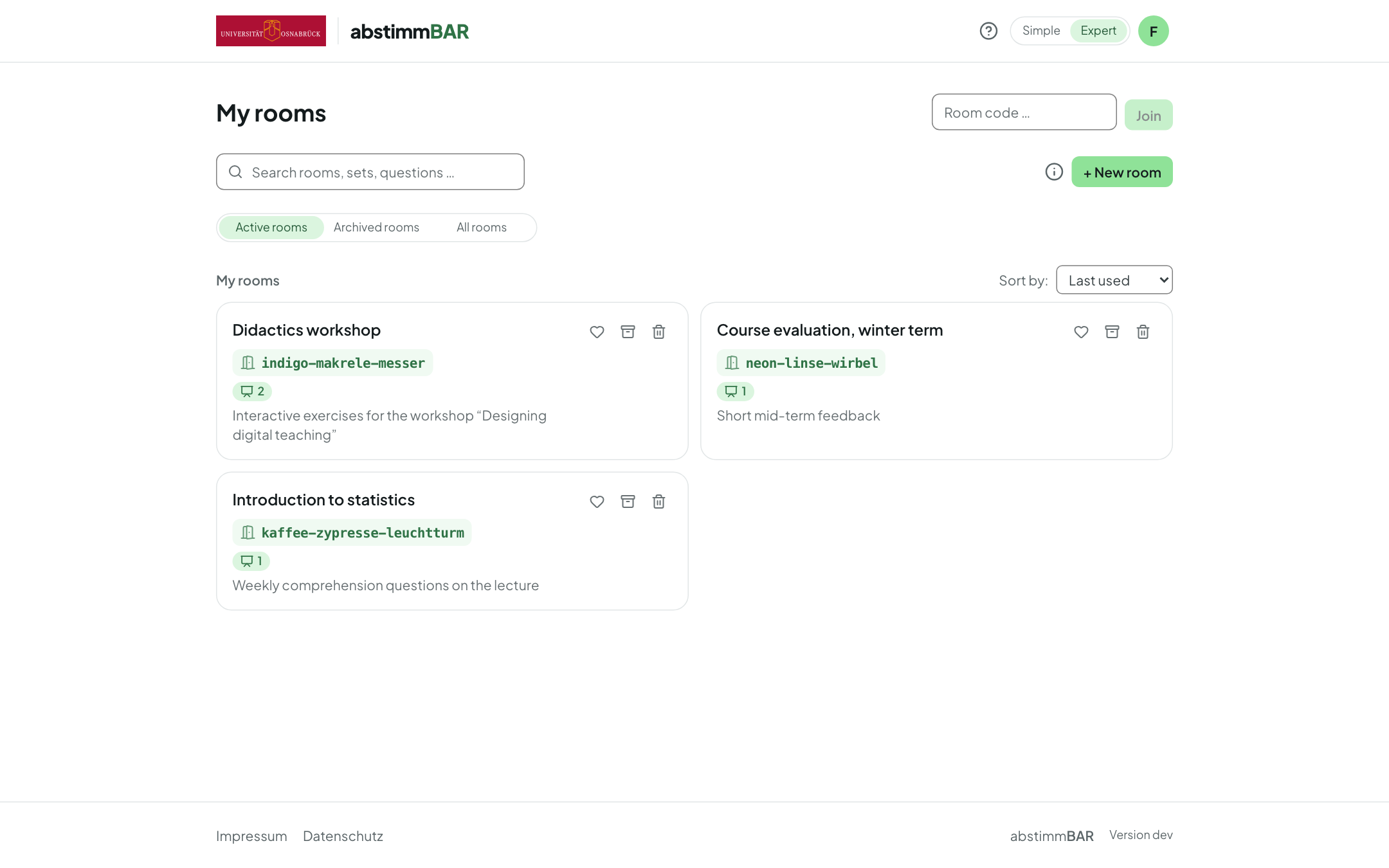
Creating a room
- On the home page, click “+ New room” and enter a title (e.g. the name of your course).
- The room opens right away — this is where you then create your question sets.
- Pin rooms you use often to the top as a favorite with the heart icon.
Finding rooms
- The search field on the home page searches rooms, sets and questions — including the text of questions and answers.
- The list can be sorted; shared rooms are listed under “Shared with me” (see Rooms as a team).
- Inside a room, you can filter the question sets by type (live poll, self-paced quiz, self-check) and search them, including their questions and answers.
Room settings (expert mode)
Via the room's ⋮ menu → Settings you change the title and description. Expert mode adds:
- Show logo in presentation mode — your institution's logo at the top right of the projector screen.
- Always show QR code and Always show room code — in a corner of the presentation of your choice, so latecomers can join at any time.
- Closing info for participants — a text participants see after a vote has ended (e.g. further links, reading, contact details).
Archiving or deleting
Rooms you don't need at the moment can be archived on the home page — they then appear under “Archived rooms” and can be restored. The trash can icon, by contrast, deletes a room permanently, along with all its question sets and results. How to archive just the results of a set is explained under Results.