Types of question sets
Every question set is one of three types. The type determines how the set is run, who sets the pace and which question types are available. You choose it once when creating the set via “New question set”; after that it can no longer be changed (it is shown as a label in the set's settings). If you need the same questions in a different type, create a new set and add the questions to it.
| Live poll | Self-paced quiz | Self-check | |
|---|---|---|---|
| Pace | you lead question by question on the projector | everyone at their own pace while you watch | anytime, anywhere, without you |
| Access | room code / QR code | room code / QR code | permanent link (also in the LMS) |
| Feedback | results and solution on the projector | optionally right after each question | immediately or in a summary at the end |
| Results | saved per run | saved per run | only the number of attempts and the share of correct answers |
| Question types | all | all except mind map and four-field matrix | single and multiple choice, ordering, free text |
Live poll
The classic lecture-hall vote: you present on the projector, start each question individually, show results and the solution, and move on together. Your participants always see the question you are currently showing on their device.
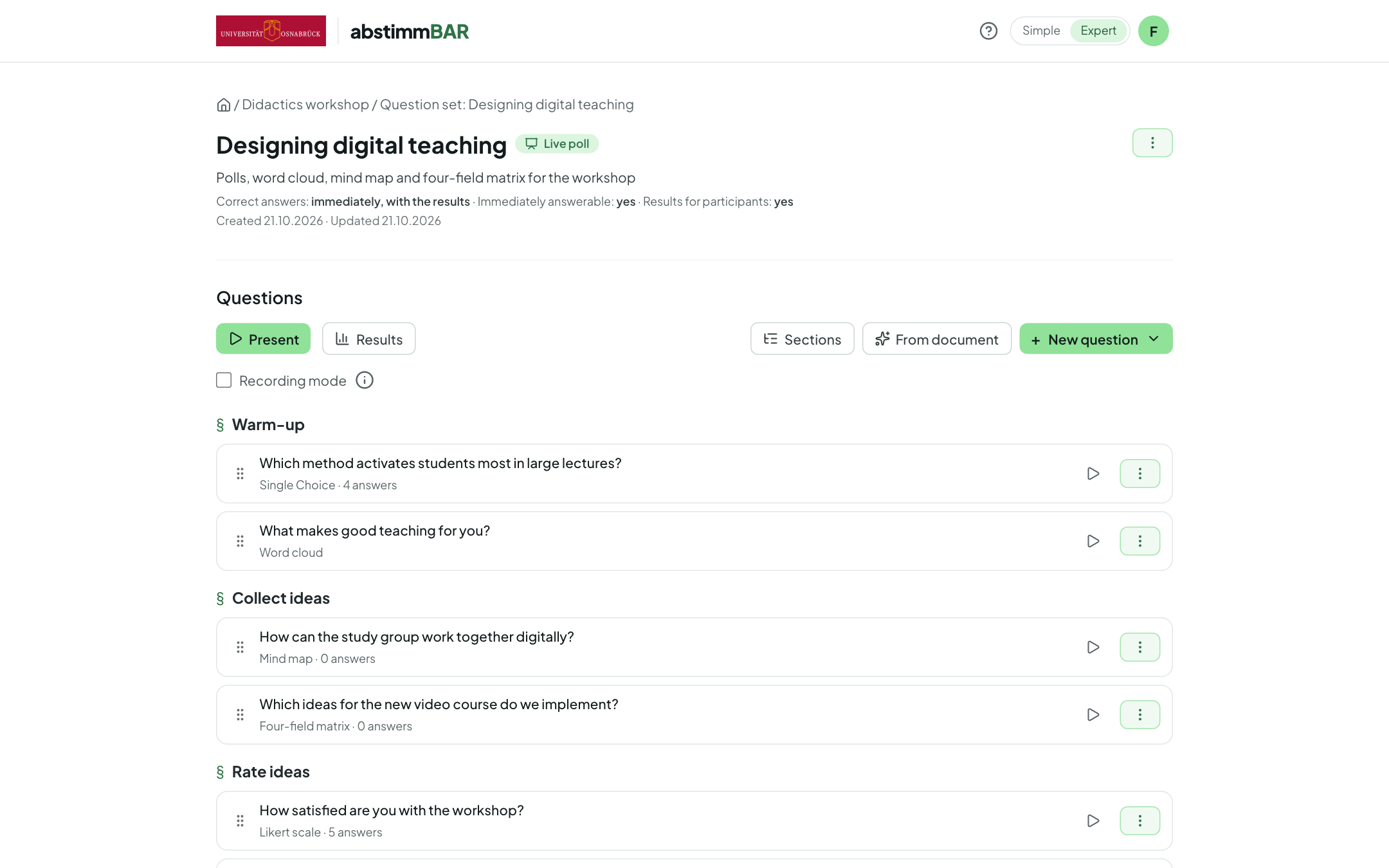
Well suited for getting started (gauging prior knowledge), comprehension questions in between, opinion polls to kick off a discussion, and collecting and rating ideas together — mind map and four-field matrix are only available here.
Settings (expert mode, ⋮ menu → Settings, under “Answers & results”):
- Reveal correct answers — immediately, after the question is closed, or never; individual questions can override this.
- Questions can be answered immediately on open — so you no longer need to start each question separately.
- Participants also see the results on their own device.
On top of that there are sections with interstitial slides, before/after questions and recording mode. How to present is described in Presenting.
Self-paced quiz
A practice phase during class: you start the quiz, and all participants answer the questions one after another at their own pace on their device. Meanwhile, the projector shows the QR code and room code, the remaining time and, for each question, how many have already answered. At the end, you can go through the results together.
Well suited for individual work and knowledge checks in the lecture hall when not everyone works at the same speed — for example a ten-minute quiz to wrap up a topic.
Settings (⋮ menu → Settings; all except the total time limit in expert mode):
- Show correct answers right after answering — instant feedback for each question.
- Show the results in the presentation afterwards — after the quiz ends, you go through the results question by question on the projector.
- Let participants navigate between questions and change answers — only possible while instant feedback is off.
- Show questions in a random order.
- Total time limit — unlimited, a preset (2, 5, 10 or 15 minutes) or your own number of minutes; when time runs out, the quiz ends by itself.
Question types: all except mind map and four-field matrix — those two thrive on joint moderation on the projector.
Self-check
Practice questions for self-study: instead of presenting a self-check, you publish it. It gets a permanent link that learners can use to practise at any time — even outside class, e.g. for follow-up or before the exam. Each question also has its own link. In the LMS, you select the set when adding it; learners then land directly in the self-check (see In the learning platform).
Well suited for self-tests, revision and practice exercises that learners can work through as often as they like.
What learners experience: after each question they immediately see whether their answer was correct, along with the solution — or, if you choose “Show results only in the summary at the end”, everything together at the end. For free text, they see your model solution and, if set up, an AI assessment of their answer. With “Show questions in a random order”, the questions are reshuffled for every attempt. (You'll find both settings in expert mode under ⋮ menu → Settings.)
Question types: single and multiple choice, ordering and free text — in other words, everything that can be given automatic feedback. So mark the correct answer for choice questions and provide a model solution for free text; if it's missing, the question list points this out.
Results: answers are not stored. In the set, you only see how many attempts there were and the share of correct answers.
Which type when?
- You want to react, discuss or collect ideas with the whole group → Live poll.
- Everyone should practise at the same time, but at their own pace, and you want to evaluate together afterwards → Self-paced quiz.
- Learners should practise independently of class and get instant feedback → Self-check.
How to start each type is described in Starting a run.