Viewing and exporting results
After a run, you'll find all answers in the results view — open it in the question set via “Results” (or in the room via the chart icon on the set). Self-checks have no results view; instead, the set shows the number of attempts and the share of correct answers.
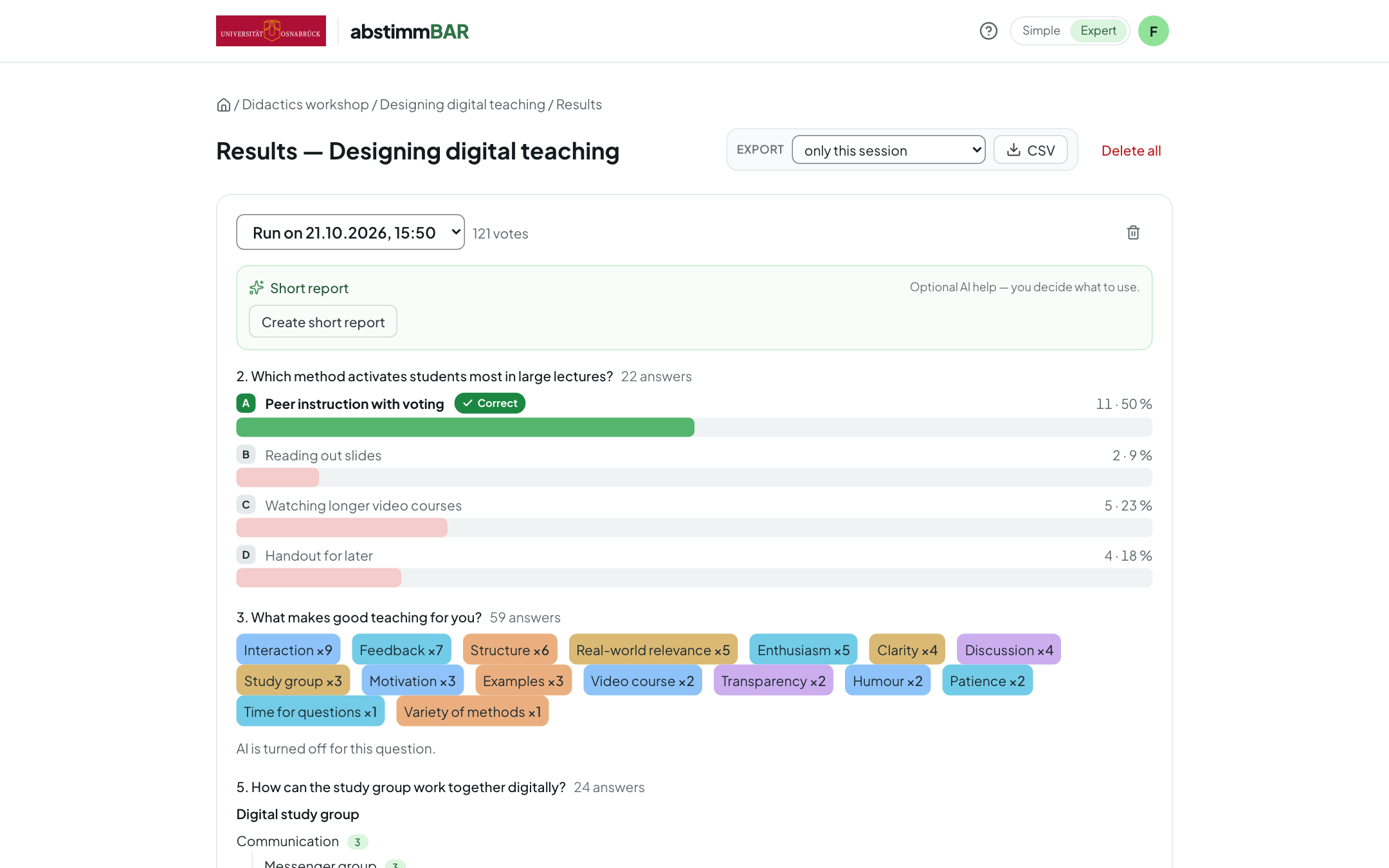
Runs
Every presentation (or every self-paced quiz) is saved as its own run. Use the “Select session” dropdown at the top to switch between them; each run is named after its date (“Run on …”), the most recent one is preselected, and a run that is still in progress is marked “still running”. Next to it you'll see the number of votes and a bin icon for deleting exactly this run.
For each question you see its evaluation — bars for choice questions (correct answers in green, marked “Correct”), the Likert distribution, priorities, ordering, word cloud, free text, mind map and four-field matrix. If people voted in recording mode, the evaluation shows the votes on-site and from the recording separately. Before-and-after questions are shown side by side.
In expert mode with AI set up, you can also Create short report, analyse free-text answers and Optimize with AI a word cloud (see AI assistance).
Mind map and four-field matrix
- Mind map: the tree of terms with counts; after a rating phase, also bars on the terms and a Ranking.
- Four-field matrix: shown as a board and as a list of cards grouped by field; hidden cards and AI summary cards (“Summary”) are marked. With a rating phase, bars on the cards and a ranking are added — while the rating is still running hidden, a notice appears instead.
CSV export
At the top of the results page, choose the Export scope — only this session (the selected run) or all sessions (incl. archive) — and download the CSV file. It uses semicolons as separators and is saved as UTF-8 with a byte order mark, so a German Excel opens it directly, umlauts and all.
The file contains one row per answer, term or card, per question and per run. The columns:
| Column | Content |
|---|---|
durchfuehrung |
Run number |
gestartet |
Start of the run (date and time) |
frage_nr, frage |
Position and text of the question |
antwort |
Answer text, term, mind map path (“Branch > Term”) or card title |
richtig |
x for correct answers |
stimmen |
Number of votes or mentions |
vor_ort, aufzeichnung |
Split of votes when voting from a recording (on-site / recording) |
prozent |
For the Likert scale, the share per scale level |
bewertung |
Result of a rating phase (mind map, four-field matrix) |
beschreibung, kategorie, zone, x, y, stapel |
Four-field matrix only: details of each card (description, category, zone, position, stack) |
Some question types use the columns a little differently:
- Likert scale: after the scale levels come summary rows for the upper and lower half of the scale, the neutral midpoint and the abstentions.
- Priorities:
stimmen,vor_ortandaufzeichnungcontain the average, minimum and maximum of the points. - Ordering:
stimmencontains how often an item was in the right place (as a percentage),prozentits position in the solution; a summary row gives the share of completely correct orders. - Word cloud and free text: one row per term or answer, with your merges applied and without hidden entries.
- Mind map: one row per visible term.
- Four-field matrix: one row per visible card; x and y lie between −1 and
1,
stapelnames the stack. With a rating phase, the bewertung column is filled: for points, the total; for plus/minus, in the format “+3/−1 (2)” (approval/rejection and balance) — just like the mind map.
As long as the results of a rating phase are still hidden, bewertung stays
empty.
Archive or delete?
- Archiving closes the current run and prepares an empty one: the next presentation starts without results, while the previous ones are kept as an earlier run that you can still select and export. For participants this means they start afresh in the next presentation; their earlier answers don't count there. You can archive in the room via the archive icon on the set, in the set's menu (Archive results) or when starting with Archive & restart. In simple mode, Abstimmbar archives automatically when you present again on a different day.
- Delete run (bin icon next to the selector) removes exactly this run with all its votes.
- Delete all removes all runs of the set, including archived ones. Deleted results cannot be restored — export them first if you still need them.
You archive entire rooms on the start page — they then appear under “Archived rooms” and can be restored. The bin icon on a set or room deletes it for good — with all its questions and results.