Creating questions
Within a room you create one or more question sets — for example one per session. A question set is what you later present or publish.
Question set type and settings
When creating a set, you choose its type — Live poll, Self-paced quiz or Self-check. It determines how the set is run and which question types are available; details and examples of use are given in Types of question sets.
Via the set's ⋮ menu → Settings you change the title, description and (in expert mode) the set's behaviour under Answers & results — which options are available depends on the type. Below the set's title, a line sums up the most important settings.
Sections (expert mode)
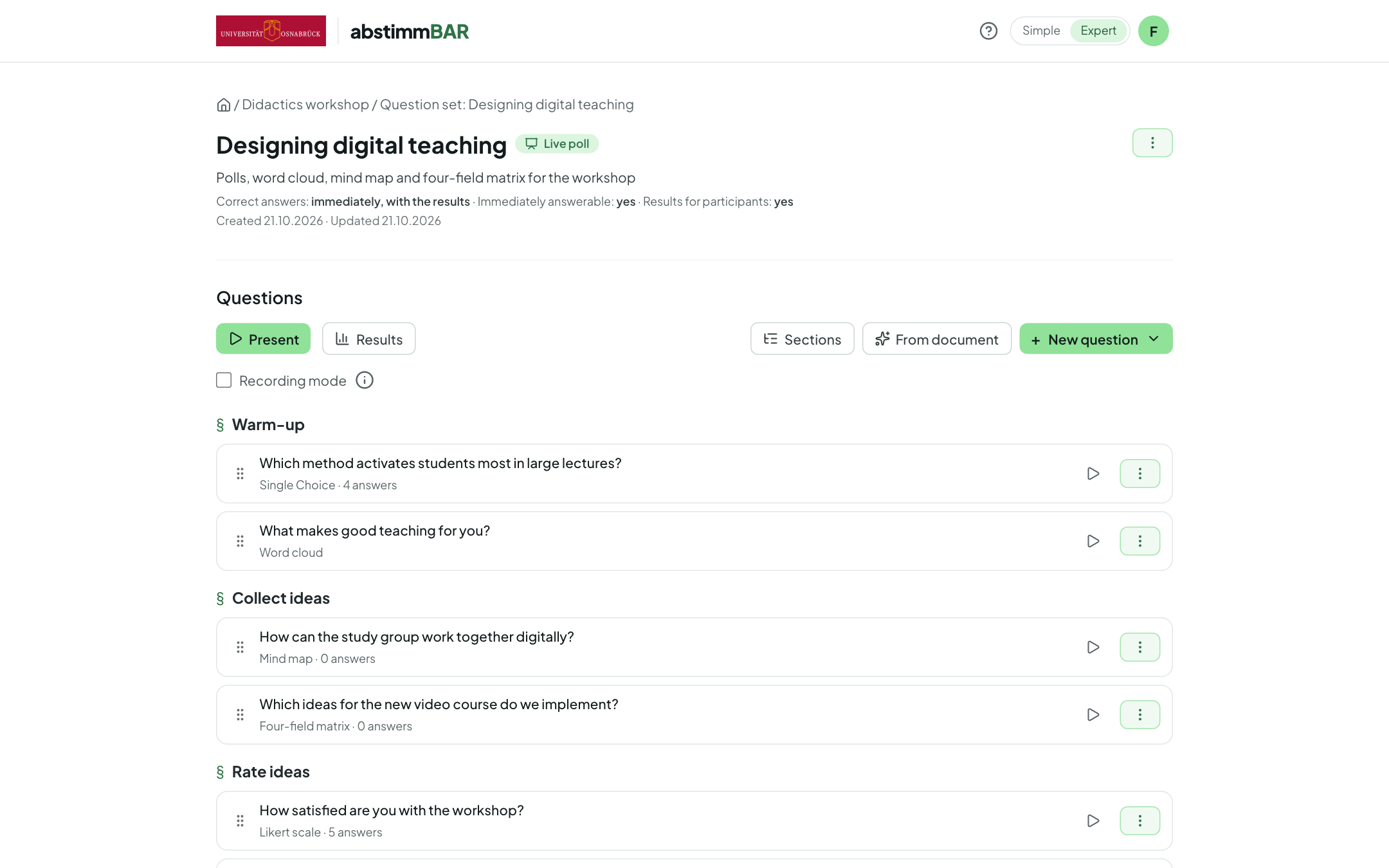
Structure longer sessions into sections. In the set, click Sections: “+ Section here” inserts a heading, clicking its name renames it, and the handle lets you move it; drag questions below the matching heading. You can optionally give each section a description. In the presentation, an interstitial slide with the title and description appears before the section (only on the projector, not for participants); press S or Right to bring up the section's first question.
Adding a question
Add a new question to the set via “+ New question”. The menu groups the question types by what your participants do — so every type has exactly one place. It only shows the types the set's type allows.
Choose
Participants choose from given answers.
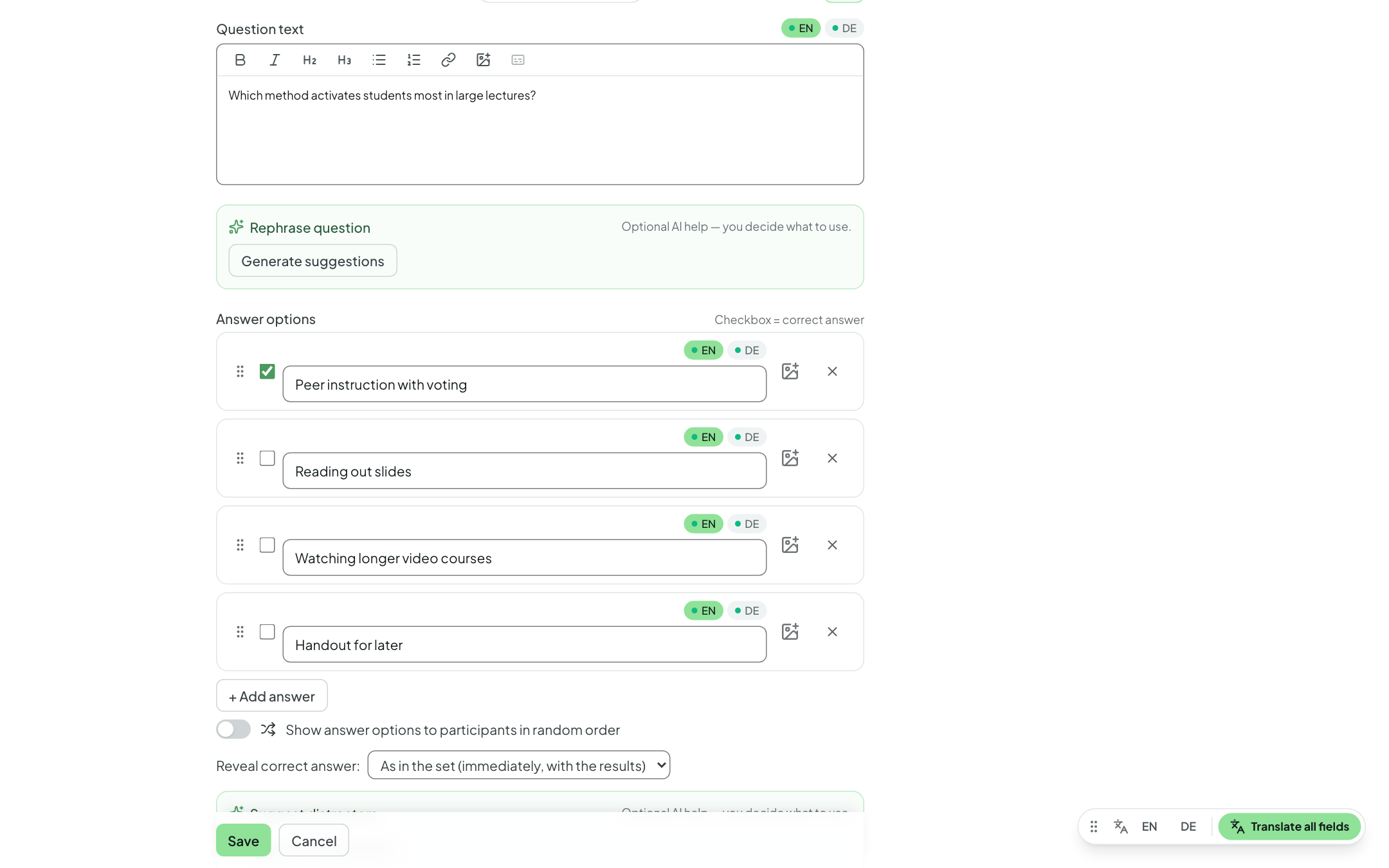
- Single Choice — exactly one answer can be selected; a correct answer can be marked.
- Multiple Choice — several answers can be selected at once.
- Yes/No — two answers; pick the Yes/No or True/False template, or enter your own.
Rate & order
Participants rate, weight or order.
- Likert scale — agreement on a fixed, ordered scale (e.g. from “applies” to “does not apply”), optionally with an abstain option.
- Priorities — your participants distribute up to 100 points across the answers: the more important, the more points. The evaluation shows the average for each answer (with minimum and maximum), sorted in descending order — so you can see what matters most to the group. There is no “correct” answer.
- Ordering — your participants drag and drop items into the right order. The order in which you save the items in the editor is the solution; participants see them shuffled. The evaluation shows how many got the order completely right and, for each pair of consecutive items, how often they were placed directly in sequence — so you can spot which transitions cause difficulties.
Answer openly
Participants answer in their own words — also for collecting ideas together.
- Free text — open answers (up to 500 characters), shown as a list. Optionally with a model solution and AI evaluation (see AI assistance).
- Word cloud — short terms that grow into a cloud live (identical words are merged, even with different upper and lower case). You can set the maximum contributions per person, whether several terms are collected and submitted together (up to five fields at once), and whether the cloud already grows on the projector while voting is open or only appears after closing.
- Mind map — participants build a tree of terms together; identical terms are merged with a count. You can set the depth, the number of terms per person, title + description, and predefined branches. Optionally, a rating phase follows (points or plus/minus, see Presenting). Only available in live polls.
- Four-field matrix — participants place cards on a grid with two axes, e.g. “low/high effort” versus “low/high benefit”. Only available in live polls; details below.
Setting up the four-field matrix
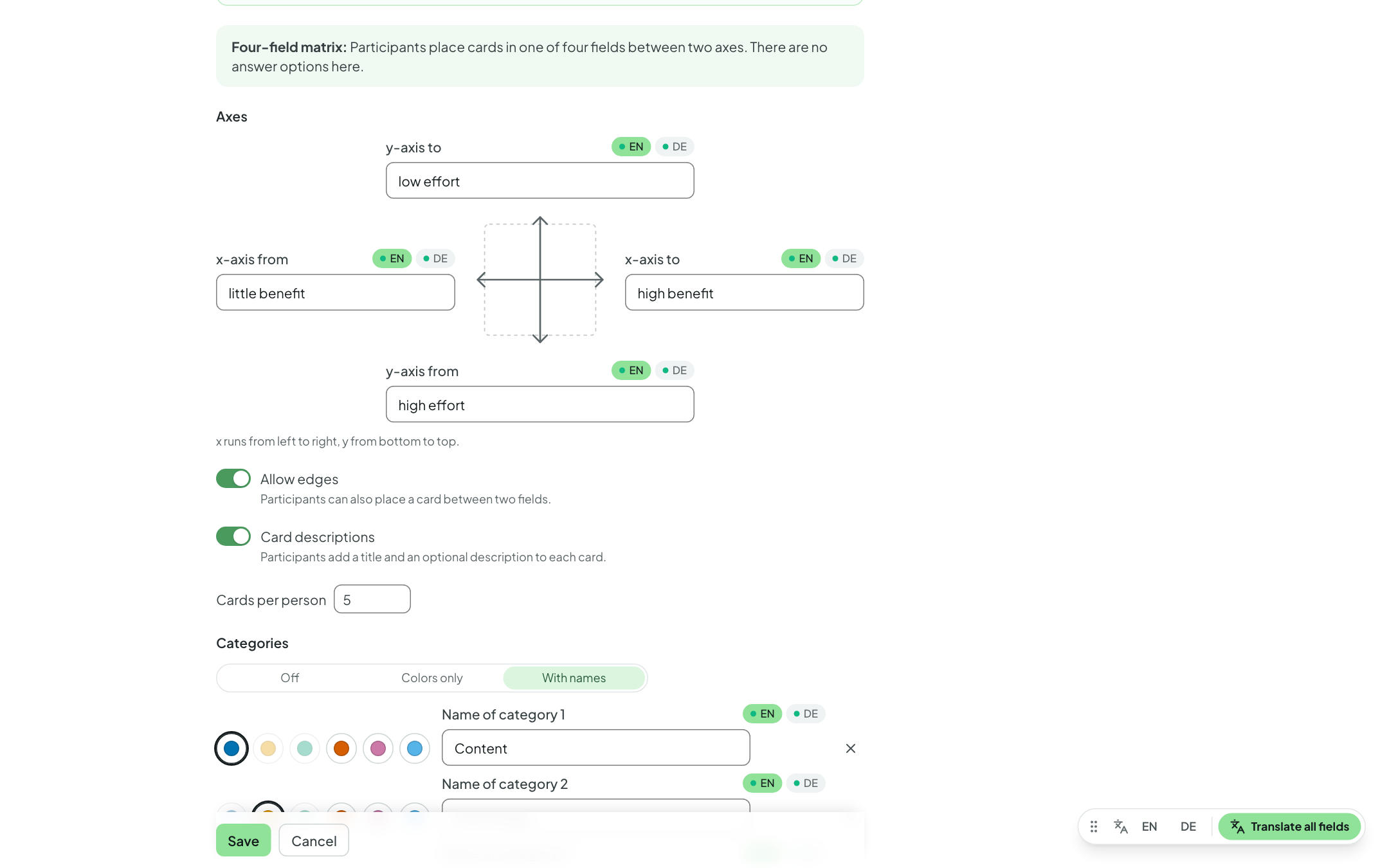
You label both ends of both axes (bilingual if you like); the fields are called top right, top left, bottom left and bottom right. You can set:
- Allow edges — cards may also sit on the axis lines, i.e. between two fields.
- Card descriptions — in addition to the title.
- Cards per person.
- Categories: Off, Colors only (up to six colors you pick freely from the palette; on smartphone and projector they are named by letters A–F in order) or With names (color plus name, e.g. “On campus” and “Digital”). At least two categories are required.
- an optional rating phase — points or plus/minus with a budget per person, optionally several points per card and display of the interim standings during rating.
- Enable AI features — for AI grouping on the projector.
On their smartphones, participants choose a field (the “+” areas), enter a title (and, where applicable, a description and category) and see under “Your cards” how many more they may place; they can delete their own cards there.
Solution and other settings per question
For choice questions, you mark the correct answer(s). Whether and when the solution is shown is set per set and can be overridden per question: immediately, after closing the question, or never.
- Random order — shuffles the answers anew for each presentation; all participants see the same order.
- Time limit — closes voting automatically after the chosen time.
- Images — insert images into the question text via the image icon in the toolbar (or by dragging them in); each answer can have its own image, too.
Bilingual content (expert mode)
You can store questions, answers, titles and descriptions in German and English (language tabs DE · EN on the field). How this works and what participants then see is described in Bilingual content.
Before/after questions (expert mode)
With a before/after question, you ask the same question twice — for instance at the start and again after your explanation or a discussion — and show both results side by side. This makes learning progress or changes of opinion visible.
This works for Single Choice (including Yes/No), Multiple Choice and Likert scale.
How to create one:
- Create the question as usual — it becomes the before-question.
- In the question list, open this question's row menu ⋮ and choose “Add after-question”.
- Abstimmbar creates a copy at the end of the set. Drag it to the place where you want to ask the question again — e.g. after the section with your input.
In the list, the two questions are labelled Before and After. You only edit the content in the before-question; the after-question picks up every change automatically (it shows a read-only preview with the link “Open before-question”). If you delete the before-question, the after-question is deleted along with it. Each question can have only one after-question.
In the presentation, you ask both questions like any other. When you show the results of the after-question, the before-result appears as a lighter bar above the after-result for each answer; for a Likert scale, the before-distribution appears muted above the new one. On the results page, both results are likewise shown side by side, labelled Before and After. The votes are counted separately.
Reusing questions
- Add questions from another set (the set's ⋮ menu) — pick questions from your other sets and copy them here. Question types the set's type doesn't allow are marked.
- Copy to another set or Move to another set — via a question's row menu.
- Duplicate (expert mode) — copies the whole set, also into another of your rooms; that way you can reuse it next semester, for example.
- Export (JSON) (expert mode) — saves the set as a file. In a room, you bring such a file back in via the ⋮ menu → Import question set (JSON), for example on another Abstimmbar instance.
- Copy set (share link) (expert mode) — creates a link that colleagues can use to take a copy of the set into their own room; your original remains unchanged. Optionally, you specify a license for sharing (e.g. CC BY 4.0). If you want to work on the same set together, share the room instead (see Rooms as a team).